Microsoft Flight Simulator Airport QA Protocol
Introduction
- Purpose and Scope of the Protocol
This protocol serves as a comprehensive guide for conducting Quality Assurance (QA) testing within the Microsoft Flight Simulator (MSFS) environment. Its primary purpose is to ensure that all airport packages and related assets meet the highest standards of accuracy, performance, and realism before release.
The scope of this protocol includes:
- Verifying airport data accuracy (ICAO/IATA codes, names, coordinates).
- Conducting technical checks on game settings, hardware compatibility, and installation integrity.
- Assessing visual fidelity, realism, and environmental integration.
- Evaluating functionality of systems such as ATC, AFCAD, and navigational aids.
- Monitoring performance metrics including FPS, memory usage, and loading times.
- Documenting and reporting bugs using standardized conventions. This protocol is designed to streamline the QA process, reduce inconsistencies, and ensure a uniform testing methodology across platforms and hardware configurations.
- Target Audience (QA Team) This document is intended for members of the Quality Assurance (QA) Team responsible for testing, validating, and reporting on airport packages and related content in MSFS. It is tailored for testers working across various platforms - including PC, Xbox Series S, and laptops - and provides clear instructions, fixed terminology, and reproducible steps to facilitate efficient and accurate testing.
-
Definitions and Acronyms
Term Acronym Definition ICAO International Civil Aviation Organization - four-letter airport code used globally. IATA International Air Transport Association - three-letter airport code used commercially. AFCAD Airport Facility CAD - data structure defining airport layout, runways, taxiways, and parking. MSFS Microsoft Flight Simulator - the simulation platform used for testing airport packages. ATC Air Traffic Control - in-game system managing aircraft communication and movement. PBR Physically Based Rendering - a technique that simulates realistic material interactions with light. FPS Frames Per Second - a measure of rendering performance and visual smoothness. VDGS Visual Docking Guidance System - system that guides aircraft to parking positions. FBO Fixed Base Operator - Private terminal/service provider at airports. GSE Ground Service Equipment - Vehicles and equipment used on ramps: baggage carts, fuel trucks, catering trucks. RAMP Ramp / Apron Area - Aircraft parking and servicing area (different from gates). PAPI Precision Approach Path Indicator- Set of lights on the side of the runway: show if approach is too high, low, or correct. VASI Visual Approach Slope Indicator - Older version of PAPI, usually bars of lights giving approach slope. ILS Instrument Landing System - Guides aircraft during approach with localizer (horizontal) and glideslope (vertical). VOR VHF Omnidirectional Range - Radio beacon giving bearing information. Z-Fighting A rendering issue where overlapping surfaces flicker due to depth conflicts. LOD Pop Sudden appearance or change in model detail due to LOD transition (Level of Detail - graphical optimization method that adjusts model complexity based on distance). DEM Digital Elevation Model. TIN Triangular Image Net. SR SunRise - internal codename for MSFS 2024 build used for QA comparison. KH KittyHawk - internal codename for MSFS 2020 build used for QA comparison.
QA Environment
- Game Settings:
-
Custom Settings
Category Setting Anti-aliasing TAA Frame Generation None Aircraft Traffic Quantity Off Road Traffic Off Sea Traffic Off Fauna Density Off ATC enforce flight plan Checked
-
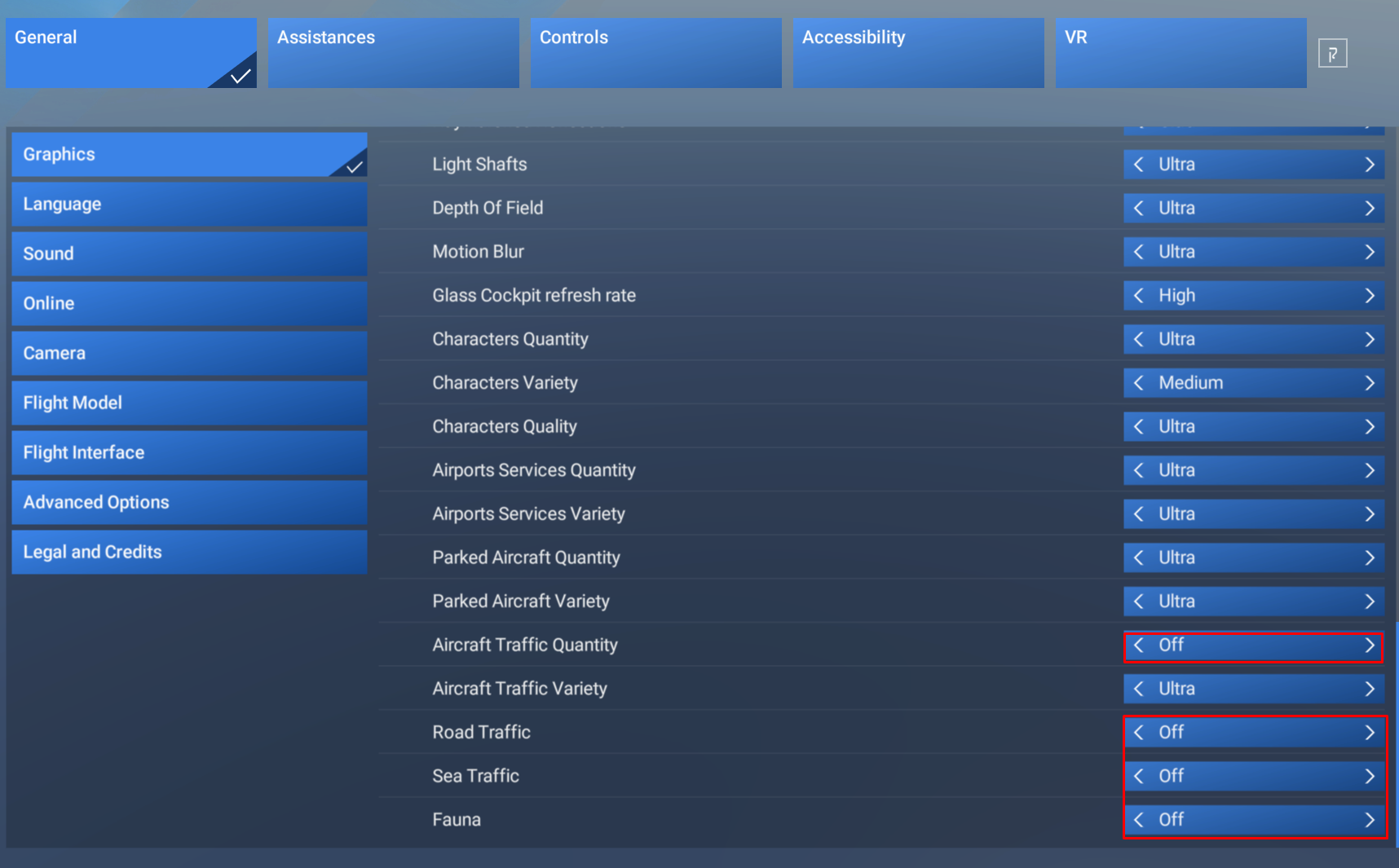
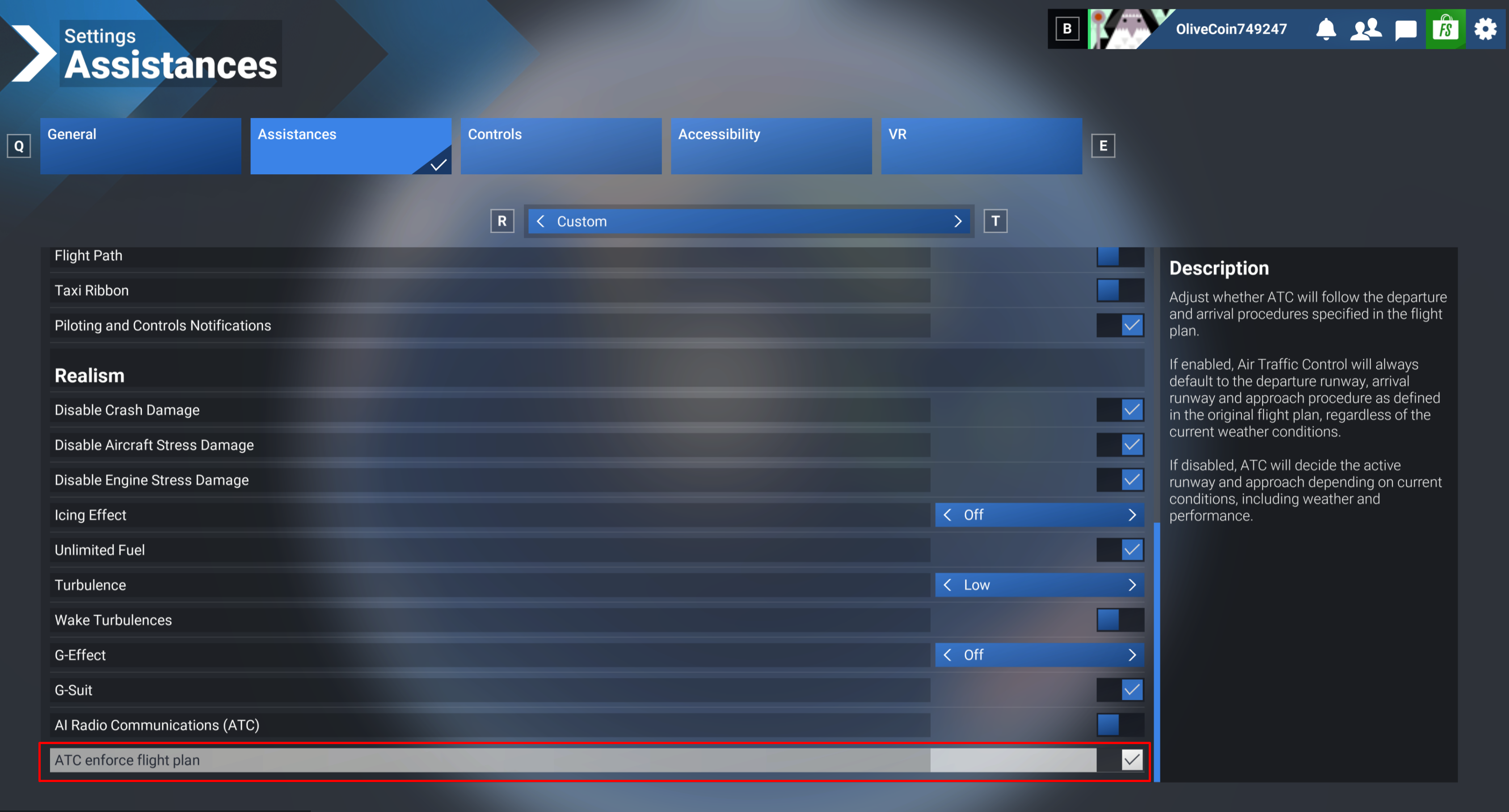
Note
Make sure to change the game settings on your computer to the setting above.
- Hardware Specifications
- Processor:
- RAM:
- Graphics Card:
- Operating System:
- Storage:
Note
Please fill in your computer specifications above.
Notice
For this document to be accurate and complete, it needs to be tested on other platforms, it is necessary to consider different types of hardware, such as:
- Xbox Series S.
- Laptop.
- PC.
QA Protocol
General Information
Here the QA personnel will verify that the airport data is true to life, the airport code is correct, the airport name is spelled correctly, the airport in the game is placed in the correct coordinates as in real life and that the version of the package is the latest one. In addition, record the specifications of the computer used for testing and the game settings.
Technical checks before loading the airport
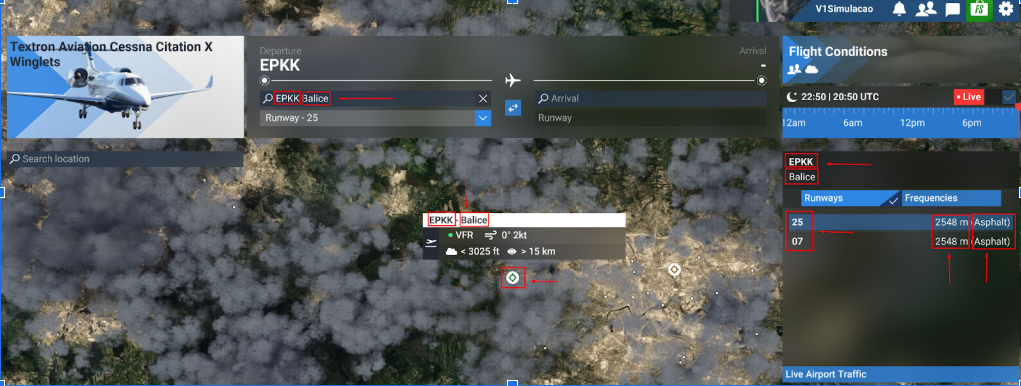
- Airport ICAO/IATA Code.
- Airport Name.
- Location (coordinates).
- Version of the Package.
- Date of QA Check.
- QA Tester Name.
Fixed Terms for Bug Description
- The airport has the wrong ICAO - should be XXXX.
- The airport has the wrong name - should be NAMENAMENAME.
- The airport is located at the wrong coordinates - should be 12.3456789, -98.7654321.
- Package version is wrong - should be Vx.x.x.
Pre-test steps
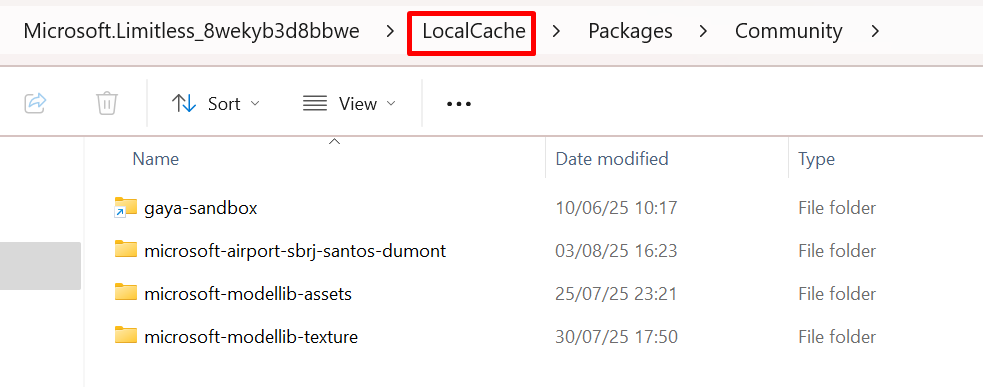
- Double-check that your Community folder contains only the most up-to-date microsoft-modellib-assets and microsoft-modellib-texture and the airport package you're about the test.
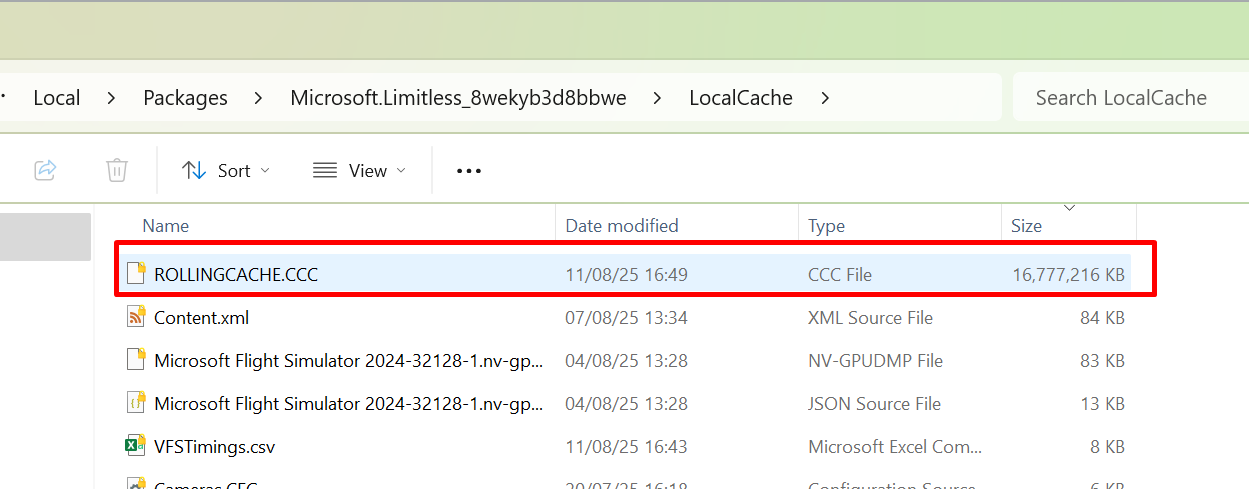
- Clear your cache by deleting ROLLINGCACHE.CCC in your LocalCache folder.
- Restart your computer
Pre-Flight Checks
Here the QA personnel will verify that the most up-to-date version of the package that's going to be tested is in the Community folder and that all other packages related to it are shadowed, check the Loading Performance (loading times and FPS) and Compatibility tests (aircraft type and size in different parking).
-
Installation Verification:
- Confirm that the correct package is in the Community folder.
- Verify no conflicts with other packages.

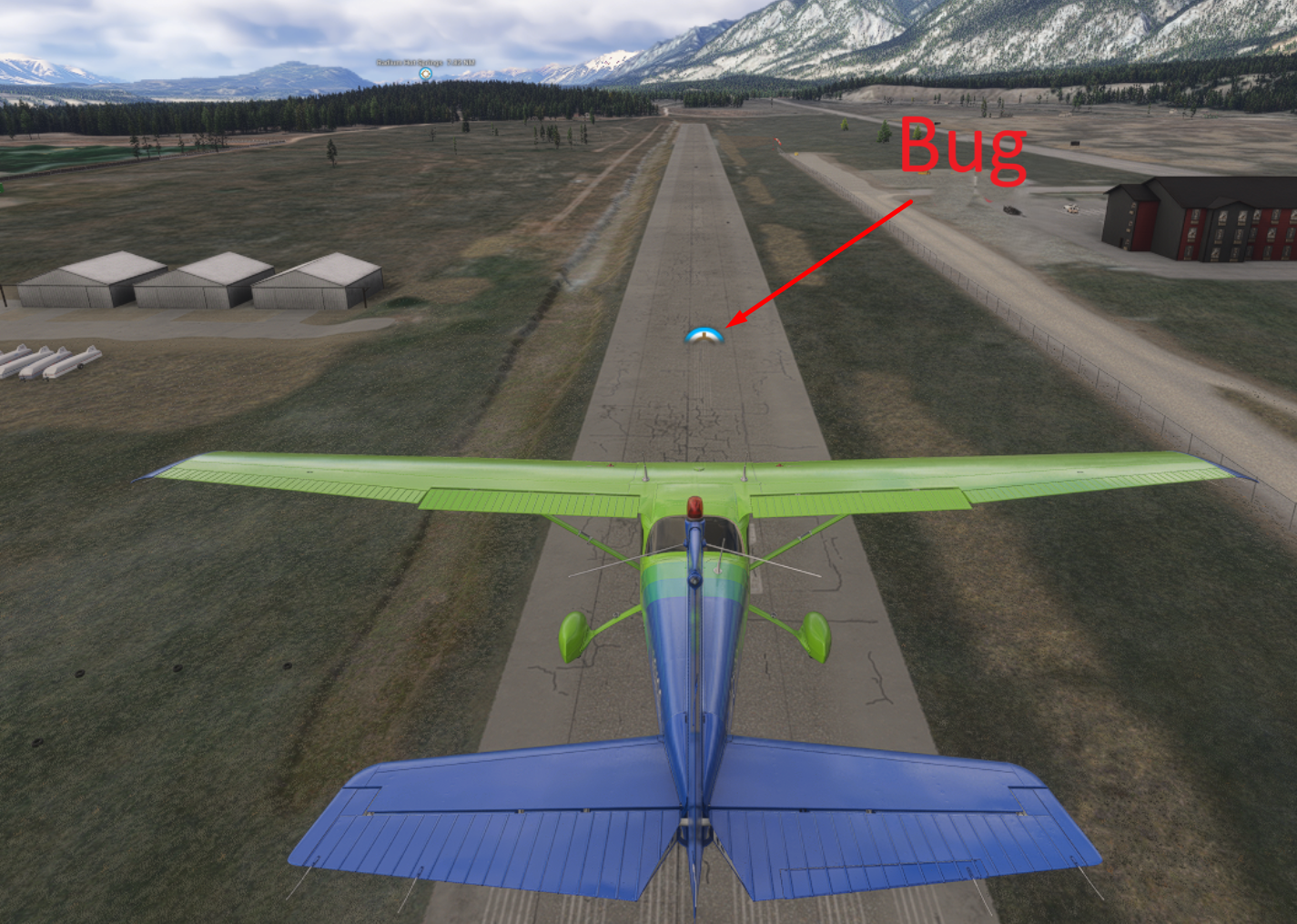
- Check that the airport marker is not clipping and displaying above the airport.
Fixed Terms for Bug Description
- Airport marker is clipping through ground in (ICAO).
- Airport marker is not in the center of airport in (ICAO).
-
Loading Performance:
- Check the initial loading times.
- Monitor FPS stability upon loading and during taxi/takeoff/landing.
Fixed Terms for Bug Description
- Package ##### version X.X.X takes too long to upload.
- Package ##### version X.X.X crashes when trying to start the airport.
- FPS in package ##### version X.X.X are too low during Taxi/Takeoff/Landing.
-
Compatibility:
- Test with various aircraft types (C152, Citation 4 and Airbus A320).
- Verify compatibility with default MSFS features (Live Weather, AI Traffic).
- Compare visual fidelity and functionality between user-installed aircraft and default simulator aircraft.
- Check for texture issues, lighting differences, and compatibility with airport services (jetways, fueling).
- Note any discrepancies in model behavior or appearance.
Fixed Terms for Bug Description
- (aircraft type/vehicle) doesn't load in (parking type) in (ICAO).
Large aircraft doesn't load in PARKING 239 - RAMP GA LARGE in KJFK
Visual Fidelity & Realism
Here the QA personnel will verify that all ground marking and buildings in the game look the same as in reality, that there're no footprints, no missing elements on or around buildings and no missing unique objects to the airport (signs, Lighting pole), Lighting checks, Terrain (all elevations in and around the airport are compatible to real world) and the accuracy and blending of water bodies near the airport.
-
Ground Textures & Markings:
- Runways: Correct markings (threshold, centerline, touchdown zone), wear and tear, PBR effects (how light interacts with materials).
- Taxiways: Correct markings (centerline, hold short lines), signs (directional, mandatory), surface quality.
- Aprons/Ramps: Parking spots, ground service markings.
For all of the above, QA personnel must provide a screenshot of the most up-to-date website or satellite imagery used for data verification.
- Grass/Vegetation: Accurate density, color, and type for the region, proper blending with hard surfaces.
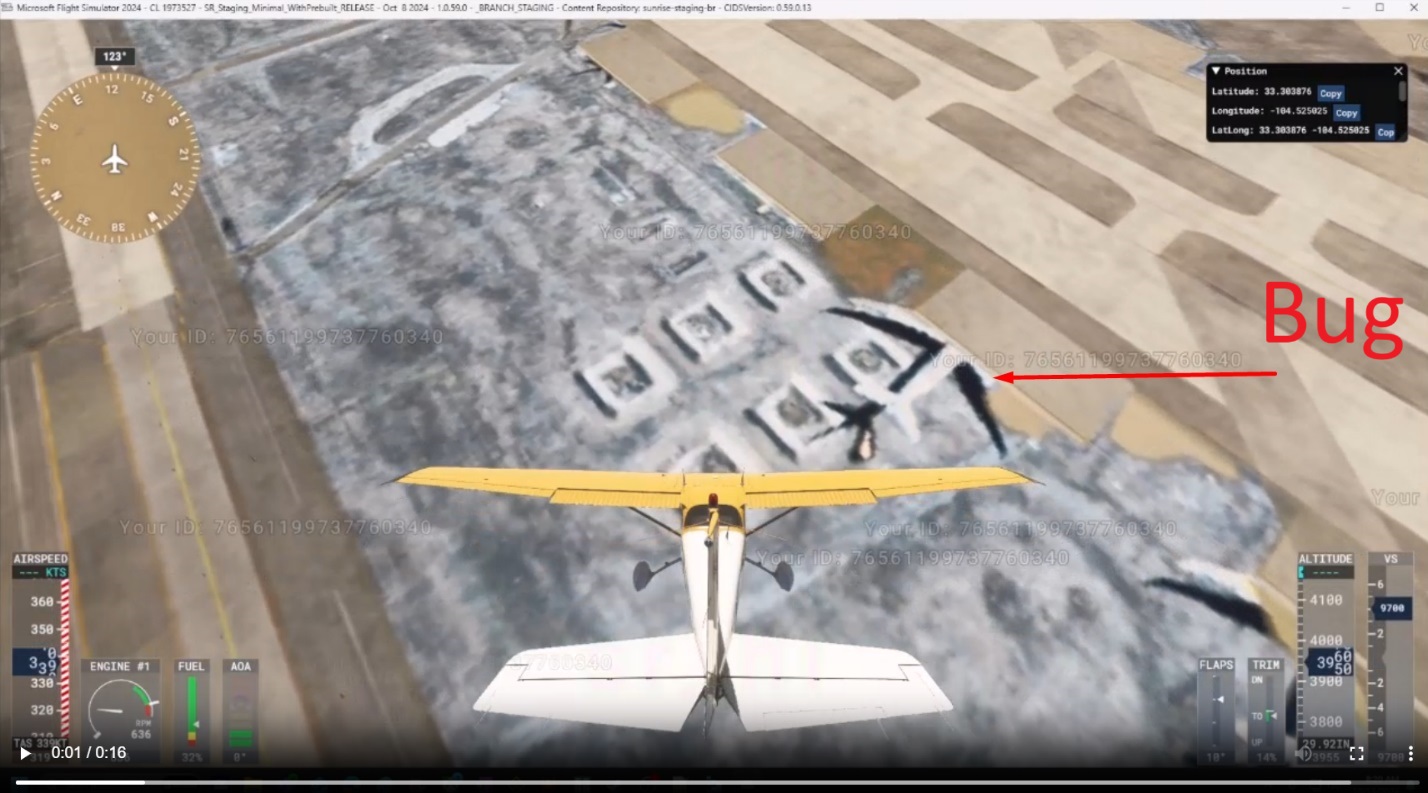
- No footprint (all buildings are properly aligned, and no vehicles or aircraft are visible on the satellite imagery).
- Seasonal Textures: check appearance in different seasons.
Fixed Terms for Bug Description
- Runway xx/taxiway/ramp have incorrect markings on it in (ICAO).
- Footprints of (aircraft/vehicle) in (ICAO) is visible.
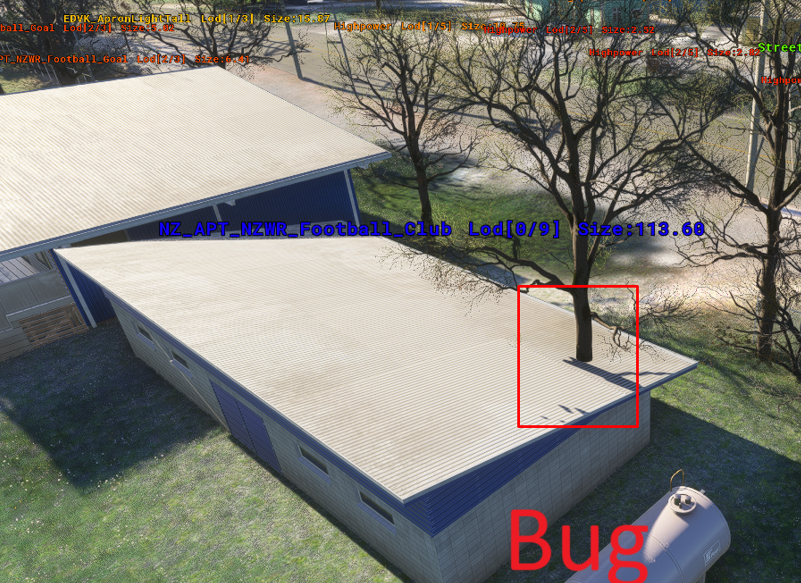
- Vegetation clipping through building in (ICAO).
-
Level Design
- Verify that all internal areas of the airport have been implemented according to references.
- Verify that the entire car parking area was made according to the references.
- Verify that the height of the trees on the plane's final approach doesn't get in the way of the user.
- Verify that the fences around the airport have been installed and that there are no gaps and that gates have been inserted.
- Verify that the vegetation exclusion polygon to the entire internal area of the airport was applied - Ensure there is no vegetation near taxiway signs around the airport.
- Verify that all the scenes created within the airport area representing real life.
Fixed Terms for Bug Description
- Fence around airport missing some parts/gates in (ICAO).
-
Buildings & Objects:
- Terminal Buildings: Architectural accuracy, window reflections, PBR materials, night textures.
- Hangars, Control Towers, FBOs: Accuracy, detail, appropriate signage.
- Ground Service Equipment (GSE): Static and animated vehicles, placement.
- Clutter/Details: Fences, light poles, antennas, windsocks, static aircraft.
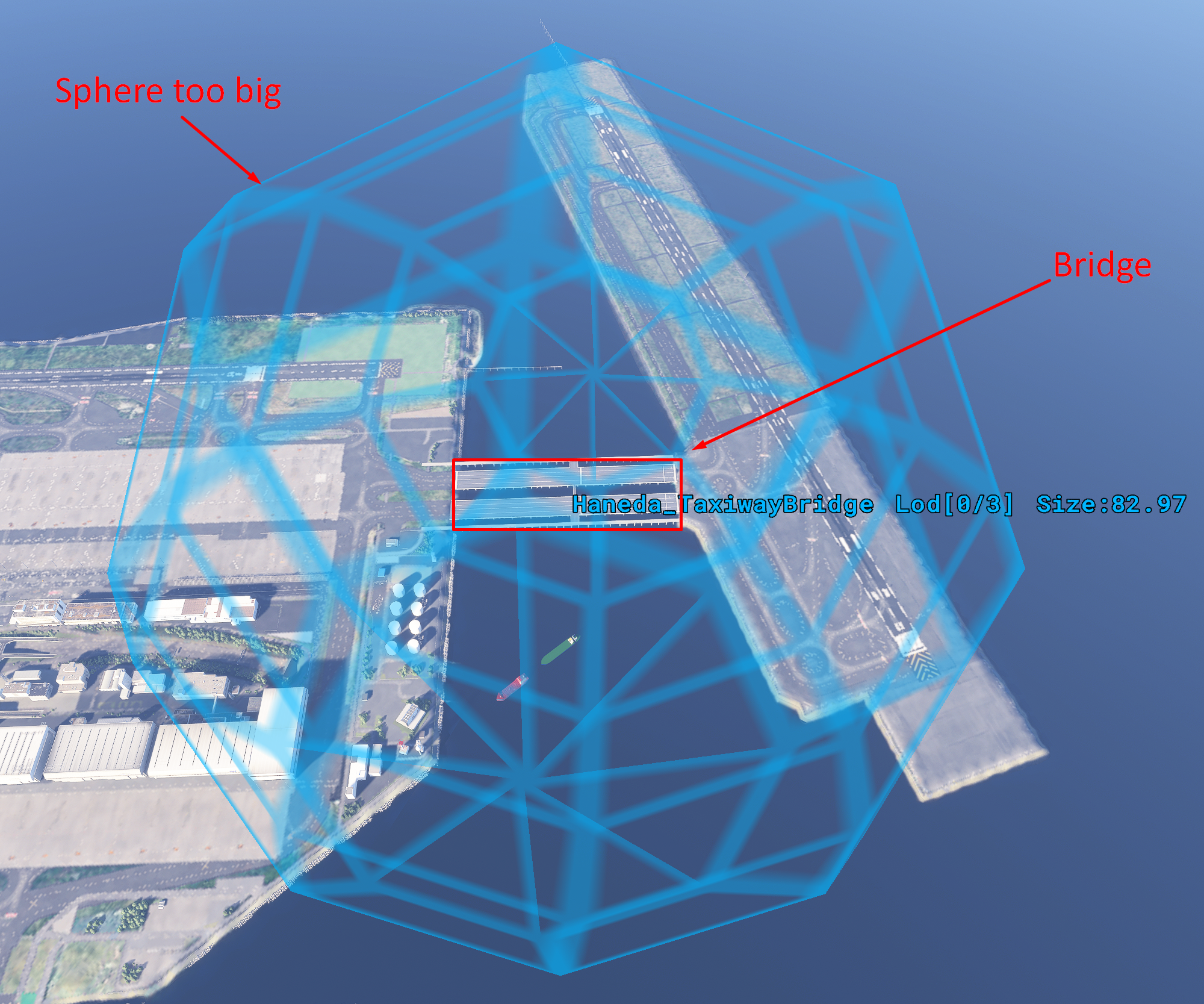
- LOD (Level of Detail): Smooth transitions of models (Terrain Tiling, buildings, props, Vegetation, vehicles) and textures at various distances, bounding sphere is in the size of the model.
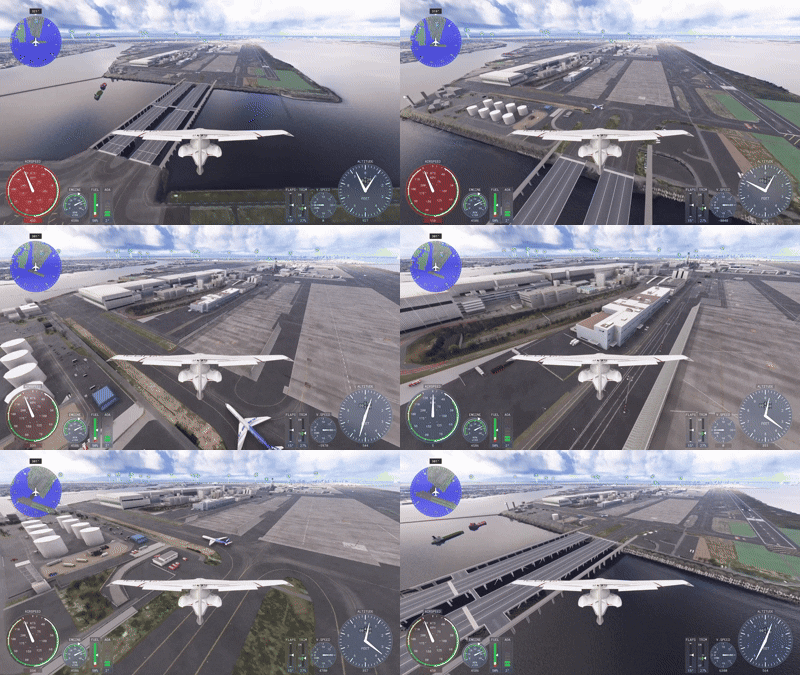
- Check for invisible textures.
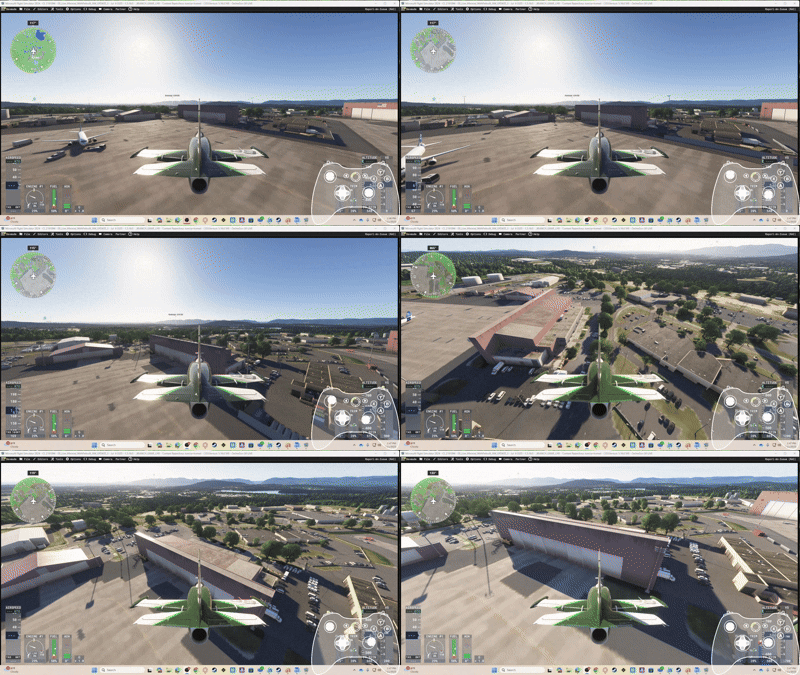
- Check for inconsistencies between SR to KH.
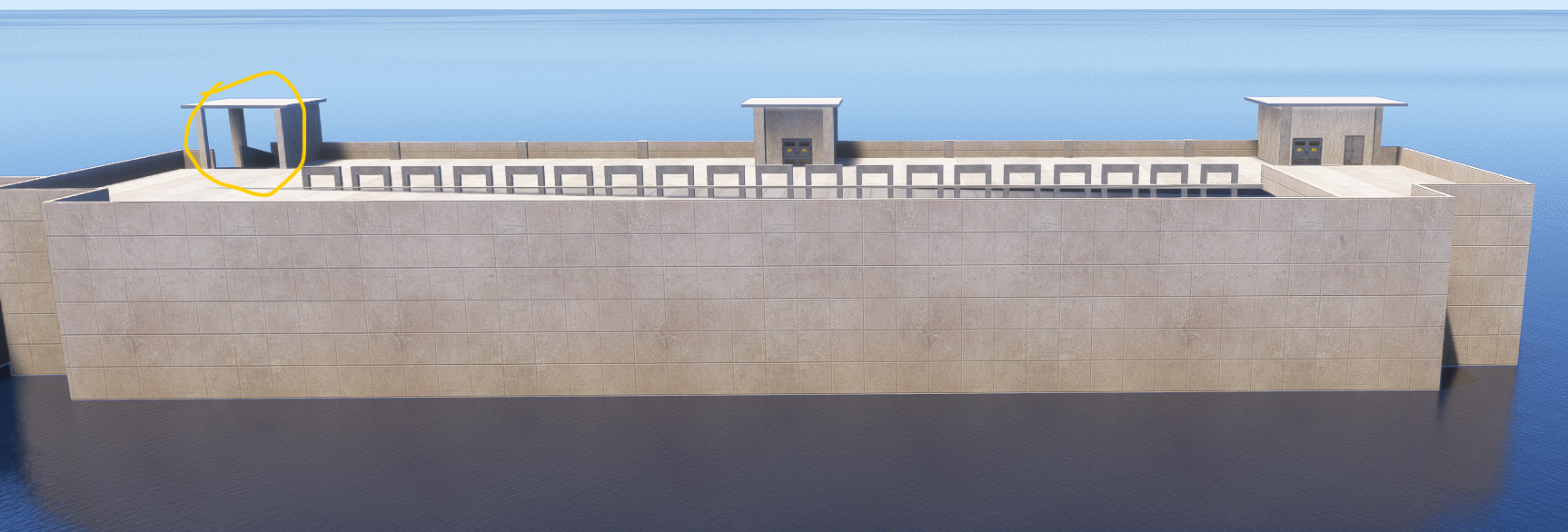
- Verify there are no missing buildings: Tunnels or buildings near main buildings.
- Z-fighting: where two or more surfaces occupy the same space or are very close together, causing the rendering engine to rapidly switch between them, creating a flickering.
Fixed Terms for Bug Description
- LOD pop on (model) in (ICAO).
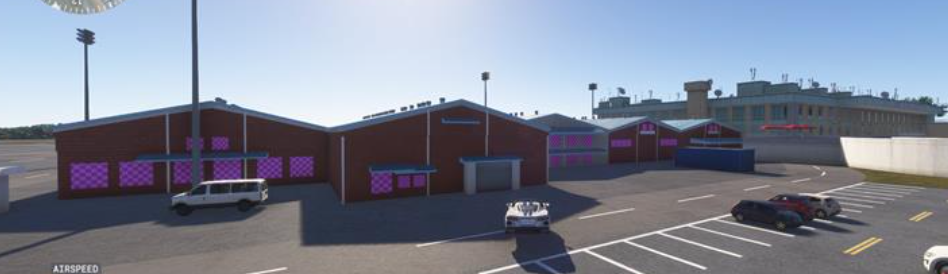
- (model) missing texture in (ICAO).
- Collision box on the runway in (ICAO).
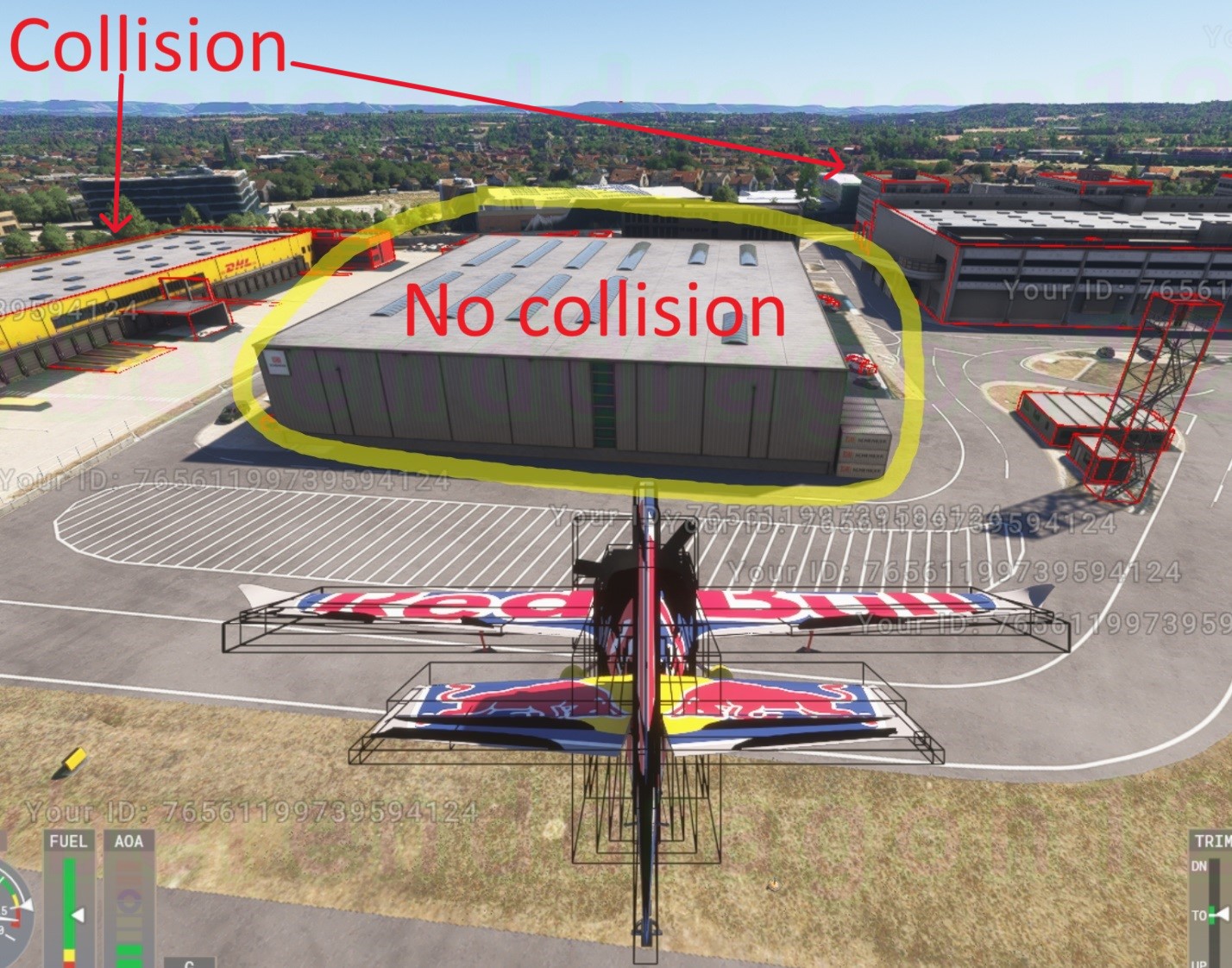
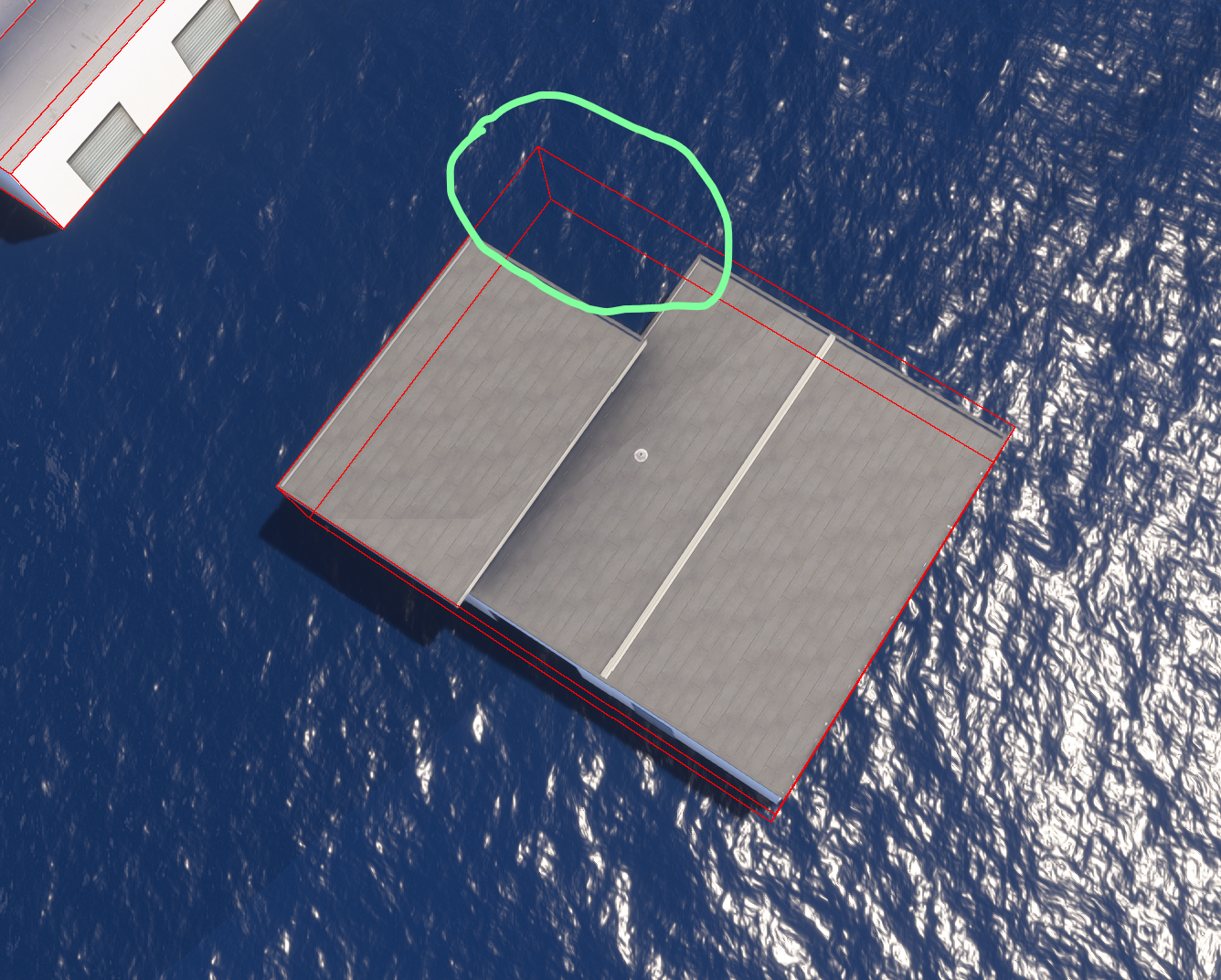
- Collision missing on (model) in (ICAO).
- (model) has invisible texture in (ICAO).
- (model) bounding sphere is too large in (ICAO).
- There are inconsistencies between SR to KH in (ICAO).
- There is a missing building near (model)/in coordinates in (ICAO).
-
True to Life:
- Check reference pictures, street view.
- No missing textures or floating assets.
- All models have collision tight around the model.
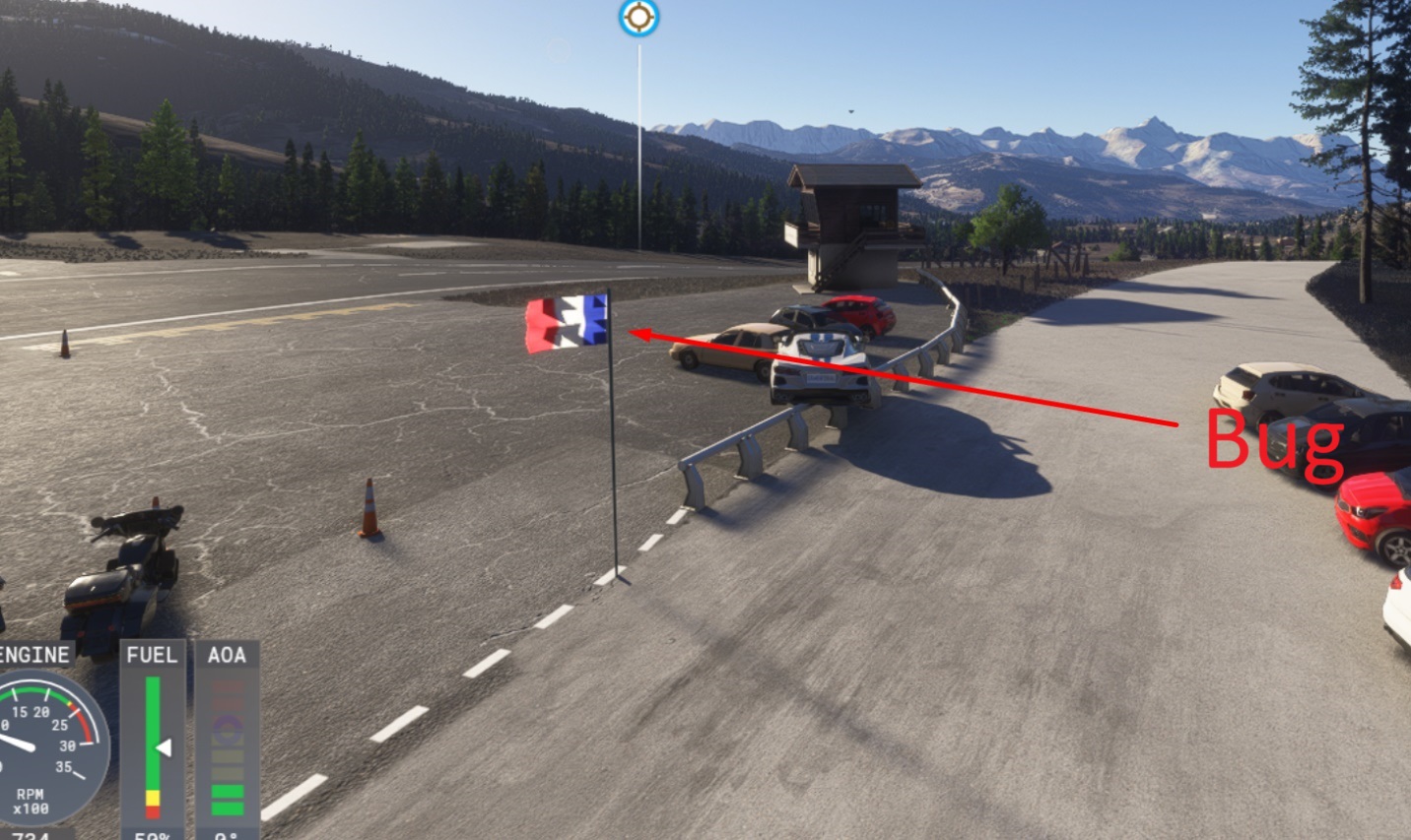
- There are no flags on or near the models (only USA flag is acceptable).
- No animals on or around the runways.
- Models are in realistic size and snapped to ground (not floating).
- No overlapping buildings, vegetation or props.
- Verify presence of oil stains and tire marks on the runways, taxiways and aprons.
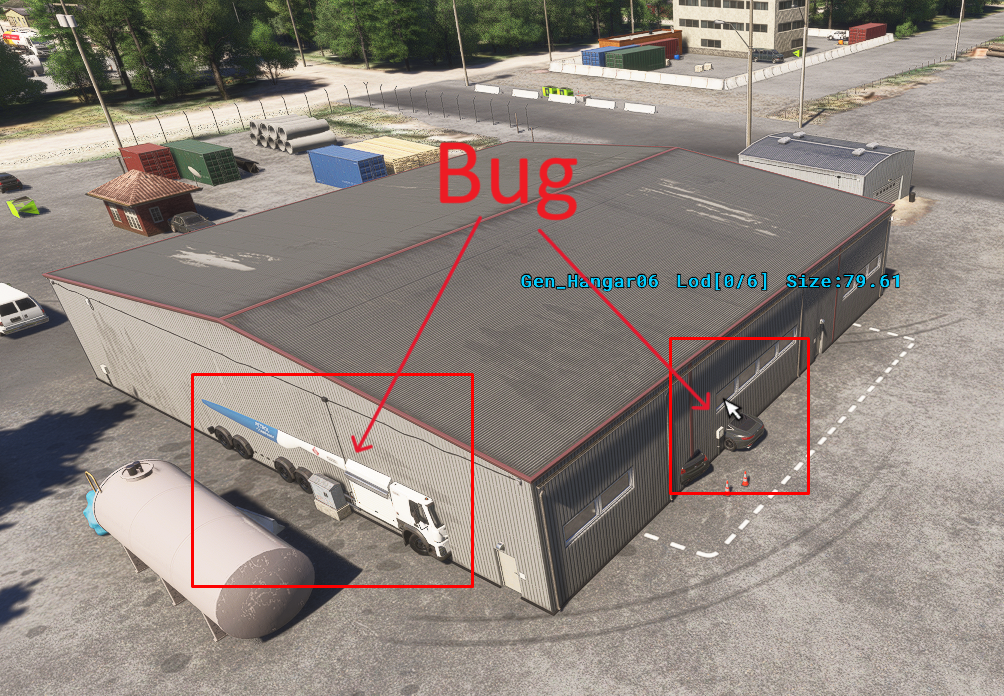
Fixed Terms for Bug Description
- (Model) (Material/Color/Size/Reflection) doesn't reflect reality in (ICAO).
- (Model) has Z-Fighting in (ICAO).
- There is a flag on (Model) in (ICAO).
- (Model) is floating in (ICAO).
- (Prop Name) on (Model) is floating in (ICAO).
- Animals on or around the runways in (ICAO).
- Overlapping buildings/vegetation/props in (ICAO).
-
Inappropriate content
- No real-life phone number.
- No real-life e-mail address.
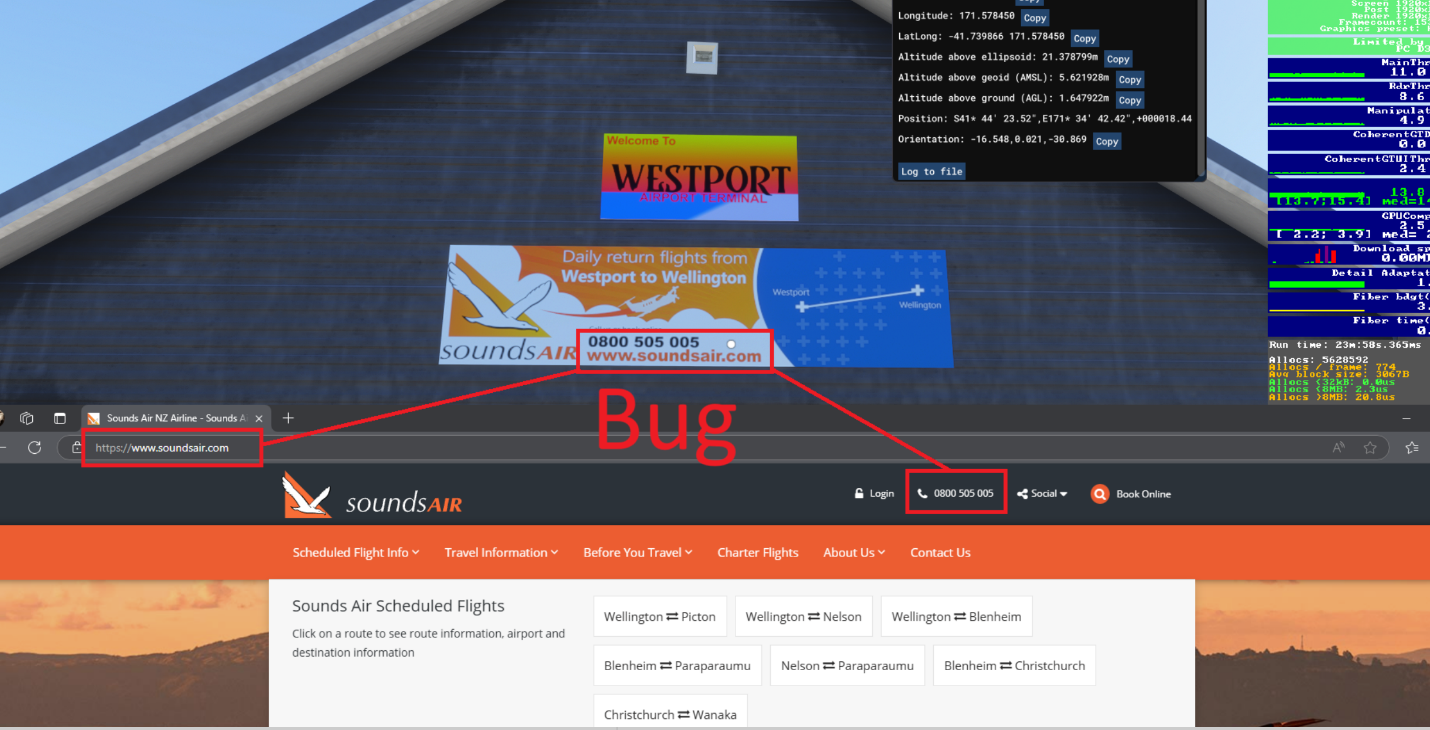
- No sexual content.
Fixed Terms for Bug Description
- There is a real-life phone number or email on (model) in (ICAO).
- Sexual content is present in (ICAO).
-
Lighting (Day & Night):
- Runway Lights: Edge, centerline, touchdown zone, approach lights (PAPI/VASI) and Taxi Ribbons.
- Taxiway Lights: Edge, centerline.
- Apron/Terminal Lighting: Realistic illumination, spill effects.
- Navigational Aids Lighting: VOR, NDB, ILS components.
- Building Lighting: Interior and exterior illumination, emissive textures - make sure there's interior lighting in the terminal.
- Dynamic Lighting: Shadows, light sources interacting with objects.
Fixed Terms for Bug Description
- Floating lights in (ICAO).
- Lights on (Model) in (ICAO) are too bright/missing emissive.
- Runway/Taxiway lights are missing/too bright in (ICAO).
-
Terrain & Elevation:
- Runway/Taxiway Slopes: Accurate representation of real-world slopes.
- Terraforming: Smooth transitions between airports and surrounding terrain.
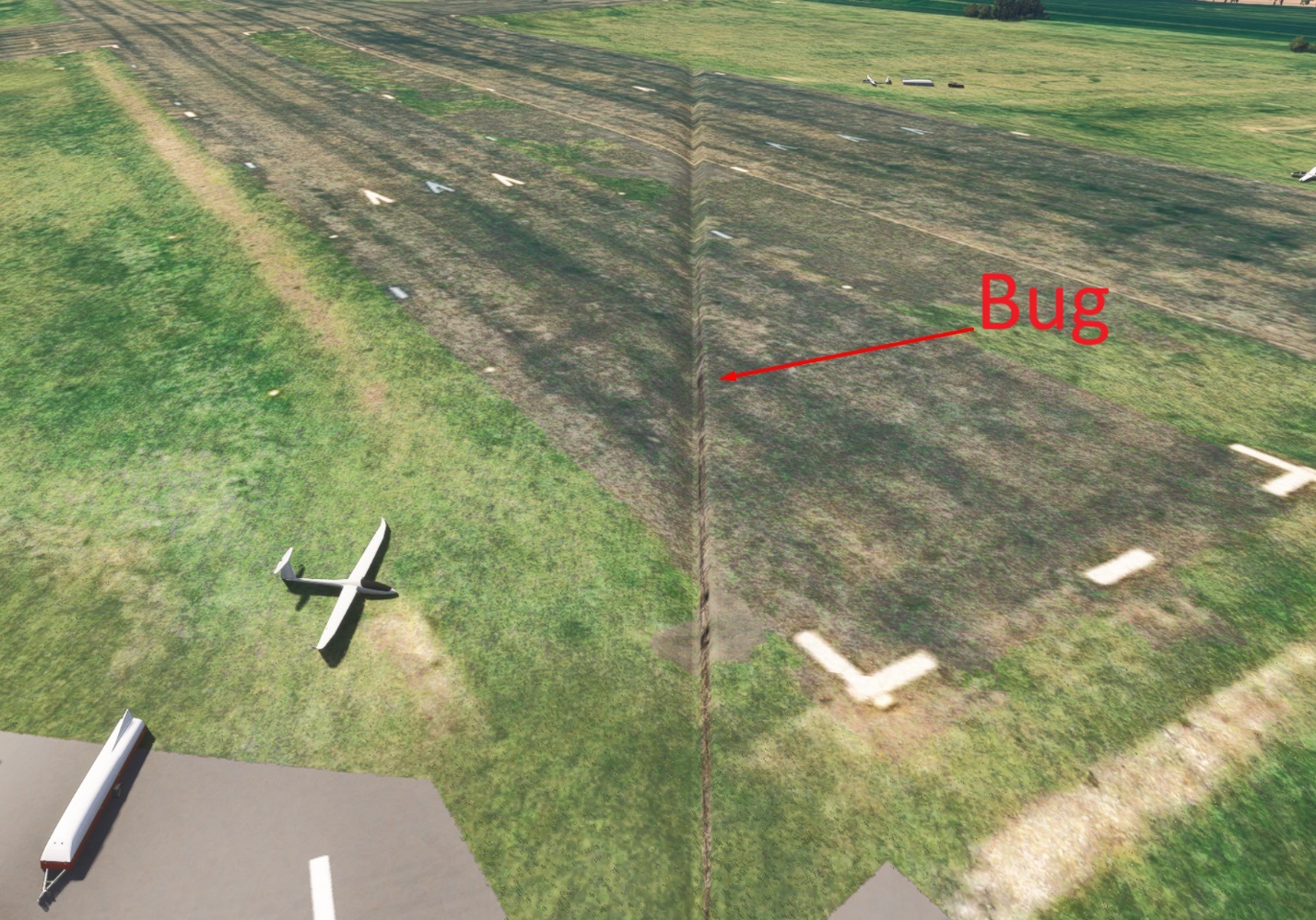
- Elevation Data: Correct airport elevation.
- TIN Presence Verification: Confirm there's no TIN irregularities near the airport. Ensure that terrain features such as hills, valleys, vegetation and urban structures are represented with high fidelity.
Fixed Terms for Bug Description
- Terraforming issues in coordinates in (ICAO).
- Runway/Taxiway slopes don't reflect reality in (ICAO).
- Airport elevation doesn't reflect reality in (ICAO).
-
Water Features:
- If applicable, check accuracy and blending of rivers, lakes, and coastlines near the airport.
Fixed Terms for Bug Description
- (River/Lake/Coastline) doesn't blend well near (ICAO).
Functionality & Systems (AFCAD)
Here the QA personnel will verify by checking on designated web sites that all the technical data of the airport is correct, verify presence and accuracy of any charts, manuals, spawn different type and size aircraft in different type and size parking, check the take-off protocol and make sure that the airport is searchable in the world map.
-
Runways:
-
Correct length, width, and surface type.
- Length and surface type can be checked by using the debug menu > airports > runway info.
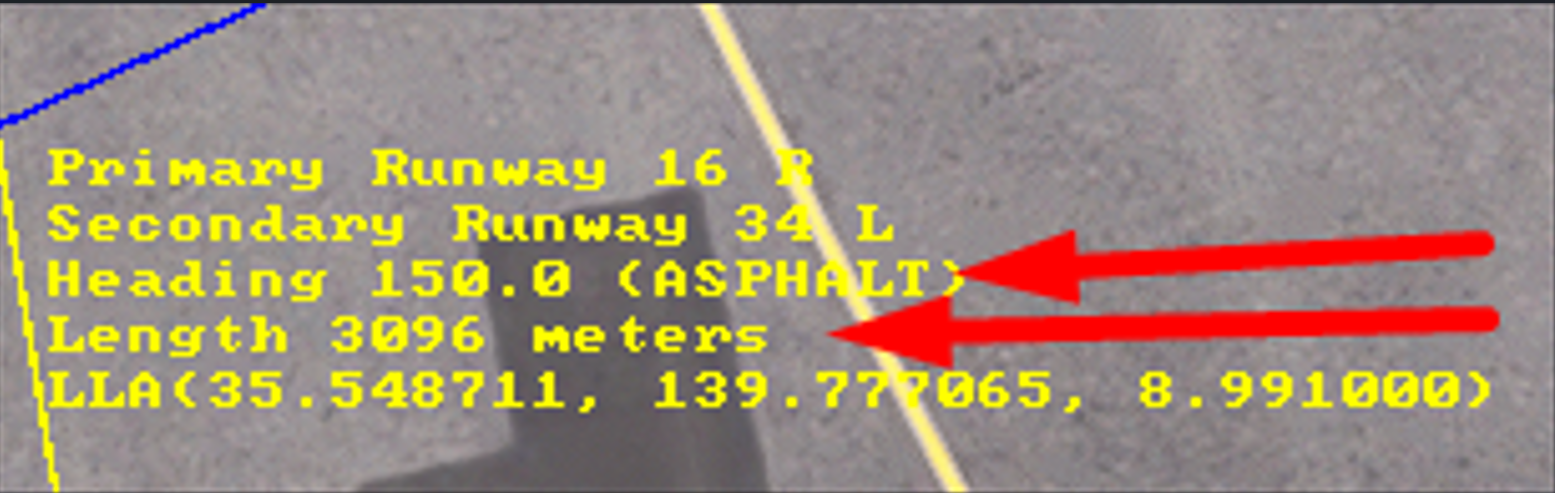
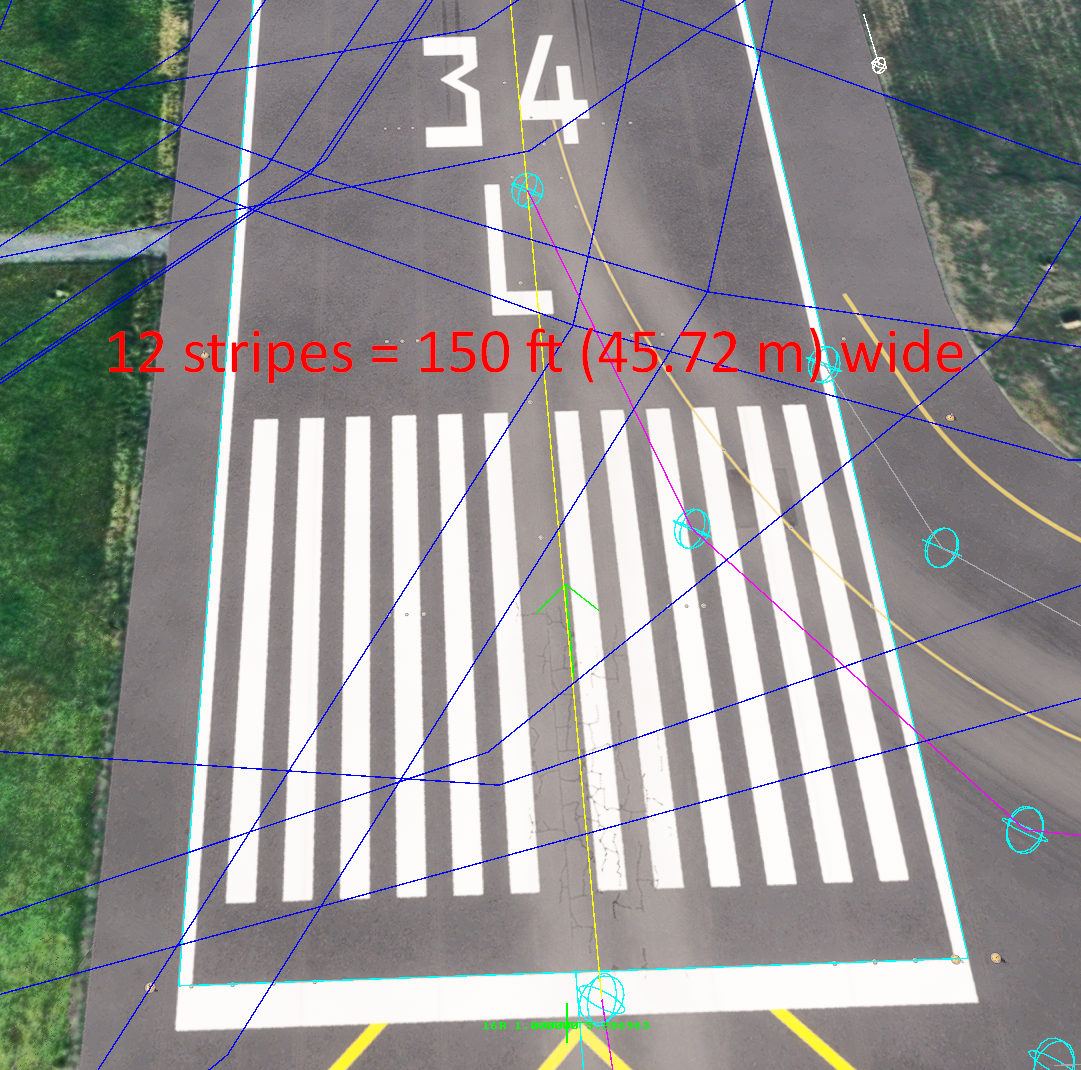
- Width: The number of the threshold markings on the runway itself indicates the width: 4 stripes = 60ft (18.28 m) wide, 6 stripes = 75ft (22.86 m) wide, 8 stripes = 100ft (30.48 m) wide, 12 stripes = 150ft (45.72 m) wide, and 16 stripes = 200ft (60.96 m) wide.
-
Accurate runway numbers and headings and correct runway markings.
- Runway start - green arrow at each end of the runway.
-
Fixed Terms for Bug Description
- Runways isn't the correct length/Width/Surface Type In (ICAO).
- Runway doesn't have correct markings/Runway Numbers And Headings In (ICAO).
- Runway Start Is Missing/Misplaced In (ICAO).
-
Taxiways:
- Correct naming and signage.
- Clear paths for AI and user aircraft.
-
Parking & Gates:
- Accurate gate numbers and types (GA, ramp, jetway).
- Functional jetways (if animated) and verify they're connected to the building.
- Proper parking spot definitions for AI traffic.
-
Air Traffic Control (ATC) Integration:
- Correct taxiway guidance.
- Accurate runway assignments.
- Proper communication with ground, tower, and approach.
- AI traffic flow and behavior.
-
Navigational Aids (Navaids):
- VOR/DME/NDB: Accurate placement, frequencies, and functionality.
- GPS Approaches: Verify accuracy if specific to the airport.
- ILS (Instrument Landing System) Landing Verification:
- Perform a full ILS landing procedure using supported aircraft.
- Verify correct frequency tuning, localizer alignment, and glideslope capture.
- Confirm that the aircraft follows the ILS path accurately to touchdown.
- Note the runway used and direction (Runway 27 ILS approach).
- Test with and without user assistance features (auto-pilot, landing aid).
- Report any deviations, misalignments, or missing ILS components.
-
Ground Services:
-
Fueling services, catering, pushback, baggage handling, passenger boarding: Availability and proper operation.
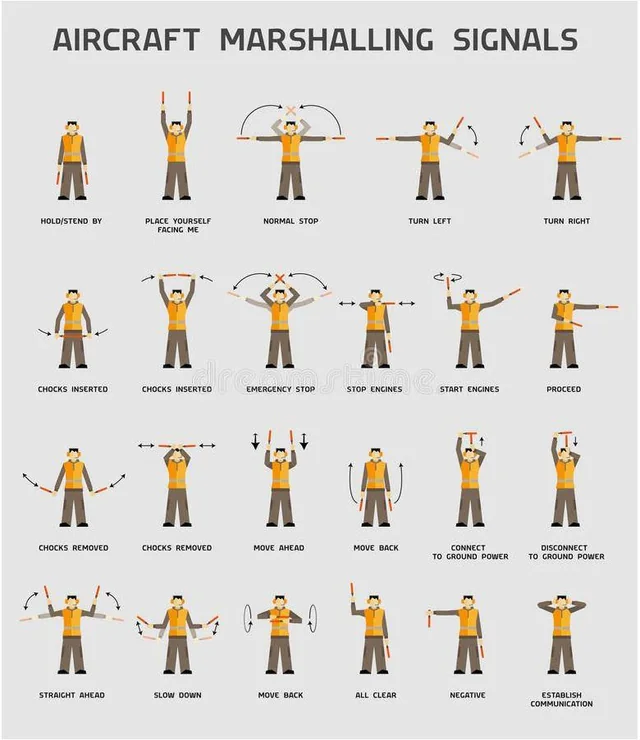
- Marshallers or Visual Docking Guidance System (VDGS): Correct guidance.
-
Spawn aircraft
- Aircraft type and size in different parking.
- No objects or collision in spawn location.
- Start on runway/in parking space, spawn in the middle of runway (at the start point)/parking, facing runway.
Fixed Terms for Bug Description
- Aircraft spawn in wrong direction in (ICAO)
- There's a collision box in spawn location in (ICAO)
-
Take off protocol
- Complete the process of taking off at an airport.
- Make sure it's possible to take off from both sides of the runway with and without ATC enforce flight plan Checked and specify the runway direction used during takeoff (Runway 09 or Runway 27).
- Taxi at full throttle on all taxiways and runways to ensure smoothness (no need to take off here) - make sure it's not causing the aircraft to bounce.
- Perform takeoffs with and without user assistance features enabled (Auto Rudder, Assisted Takeoff) Observe differences in aircraft behavior, control responsiveness, and runway interaction.
- In Glider airports need to check that all gliders connect to all winches and Tow Aircrafts.
-
Weather Effects:
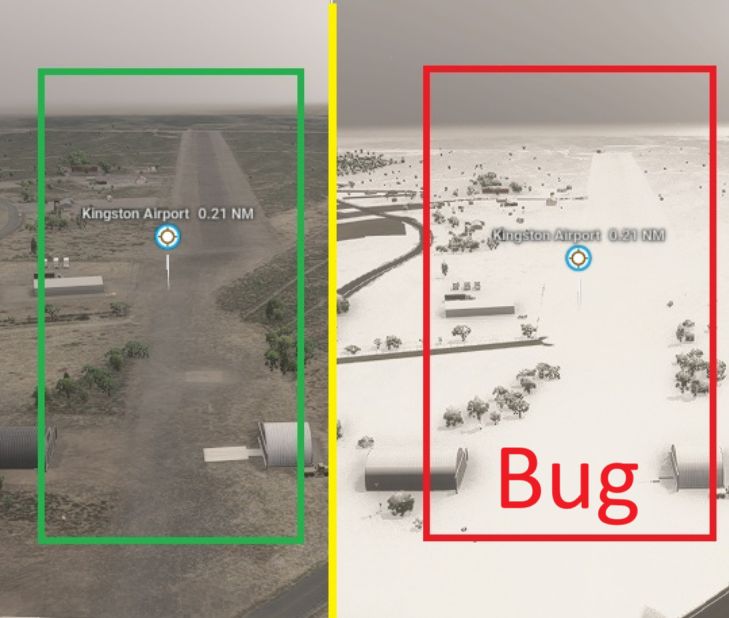
- Rain, snow, and fog:
- How they interact with surfaces and lighting.
- There's no snow or rain on runways or inside the terminals.
- Can't see buildings through fog.
- Wind effects on static objects (Trees, shrubs, windsocks).
- Rain, snow, and fog:
Fixed Terms for Bug Description
- Windsock doesn't react to wind in (ICAO).
- Snow is present on the runway or inside the terminal in (ICAO).
Performance & Optimization
-
Frame Rate (FPS) Stability:
- Monitor FPS inside and outside the cockpit (DEV camera or avatar) - above 60 FPS.
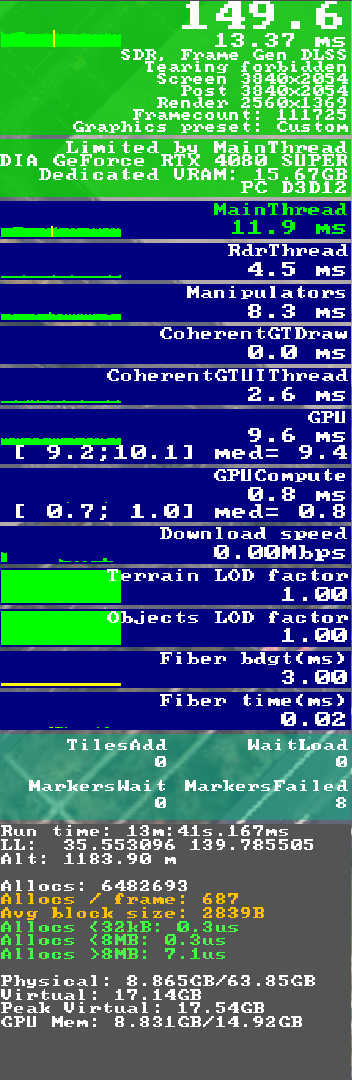
- Identify any significant drops or stutters.
-
Memory Usage:
- Observe RAM and VRAM consumption.
- CPU/GPU Load:
- Check for unusual spikes or consistently high loads.
- Loading Times:
- Measure initial load and re-load times.
Conclusion & Sign-off
QA Team Lead responsibility
- Overall Assessment (Pass/Fail/Conditional Pass).
- Summary of Findings.
- Recommendations.
- QA Team Lead Sign-off.
Bug Description Convention
How to write a bug, what to fill and where
-
When we open a new bug, we need to fill the following fields:
- Tester Name: Here you write your full name.
- Bug Title: When writing the name of a bug it's important to as much details in a few words that will describe the bug as clear as possible to the person that's going to fix the bug or check it when the bug returns after it was fixed.
This is what a Bug Title is made of:
[Project] [ICAO] [Bug Type] Bugs In A Few Words(Fixed Terms) - Version Checked On
Example
[Airport Upgrade] [ABCD] [LOD] LOD pop on terminal in ABCD - 1.1.1
in this case
- Project is "Airport Upgrade"
- ICAO is "ABCD"
- Bug Type is LOD
- The Fixed Terms is "LOD pop on (model) in (ICAO)"
- Version is 1.1.1
- Bug State:
- New - when opening a new bug.
- Active - when a bug was return from the artist and was found not properly fixed by the tester.
- Closed - when a bug was return from the artist and was found properly fixed by the tester.
- Description - a few words about the bug (using the fixed terms).
- Repro Steps - only essential steps that the artist will need to do to recreate the bug.
- Coordinates - the location of the bug in-game.
- Project Name - Airport/Gliders/Helipad.
-
Package Information - full name of the package that was checked with version.
Note
If applicable, indicate which additional packages were in the Community folder.
-
Priority:
- 1 - High: The bug must be fixed immediately, as it impacts a critical function or is blocking other work.
- 2 - Medium: The bug should be fixed in the near future, but doesn't require immediate attention.
- 3 - Low: The bug can be fixed later, as it has a minor impact or is related to a non-critical feature.
- Upload Bug Media - upload a picture with an arrow to show the bug or a short video incase of LOD pops or Z-fighting (Size of files can't be above 55MB, if needed make more than one file).
Explanation about Repro Steps
When writing Repro Steps it's important to mention only the essential steps to help the artist (or other tester) to recreate the bug, this has to be in short and clear sentences.
Example 1
- Launch build (Most up to date).
- Select Free Flight.
- Depart from KSEA.
- Try to fuel plane.
Example 2
- Launch build (Most up to date).
- Select Free Flight.
- Depart from NZWS.
- Enter Developer Camera.
- Teleport to the provided coordinates.
- Verify the banner on the side of the terminal has a website and phone number listed.
- In a browser search for the website > Take note of the name of the website and the phone number listed on the website.