ADO Updating
Harvest data from ADO to Monday
-
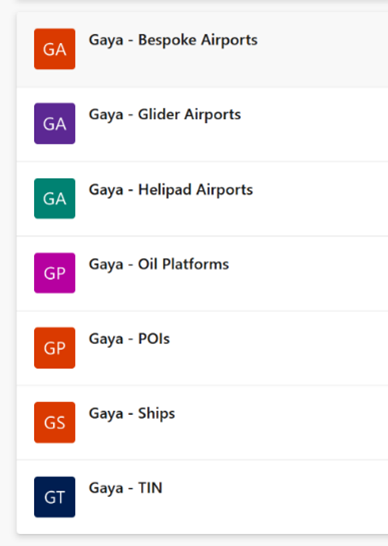
Go to the chosen board in ADO
-
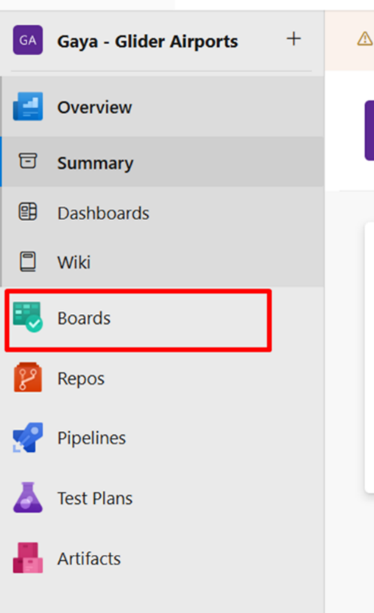
Go to Boards
-
Make sure you have no filters and go to Open in Queries

-
Export to CSV
-
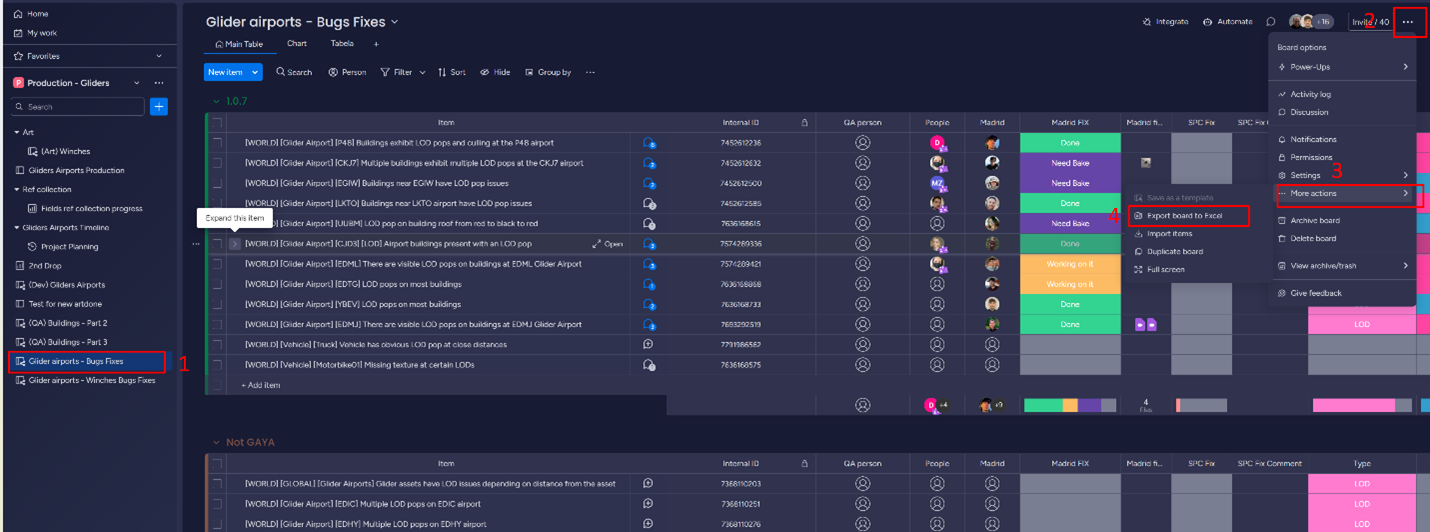
Open the corresponding workspace on Monday.com and go to the bugs fixes board (step 1) and Export board to Excel (steps 2-4)
-
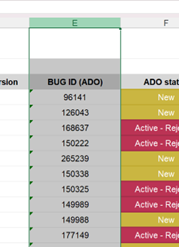
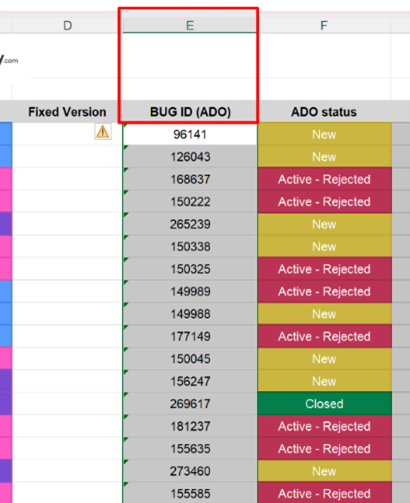
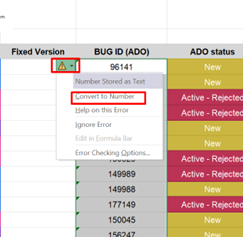
After downloading the file from Monday.com open the file and select the BUG ID (ADO) column and then unselect the first 3 cells (using Ctrl + mouse) and convert all the cells in the column to numbers.
-
In the file you exported from ADO you can leave the columns “ID”, “Title”, “Assigned To” and “State” and place a filter on the first row.
in the Monday.com file you can leave the columns “Name”, “BUG ID (ADO)” and “ADO status” all the rest of the columns you can delete in both files -
You’ll need 2 free columns next to the “State” column in the ADO file, 1 for the Vlookup formula and the second to check if 2 cells are the same.
-
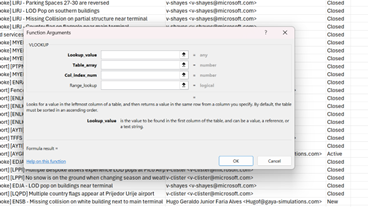
Use the second row next to the “State” column and write =vlookup then double click on the small window that opened
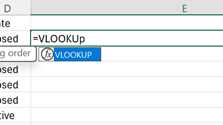
After that click on the insert function button and a new window will open.
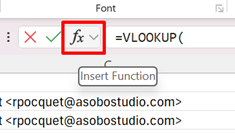
In the first box, mark the “ID” column in the ADO file
-
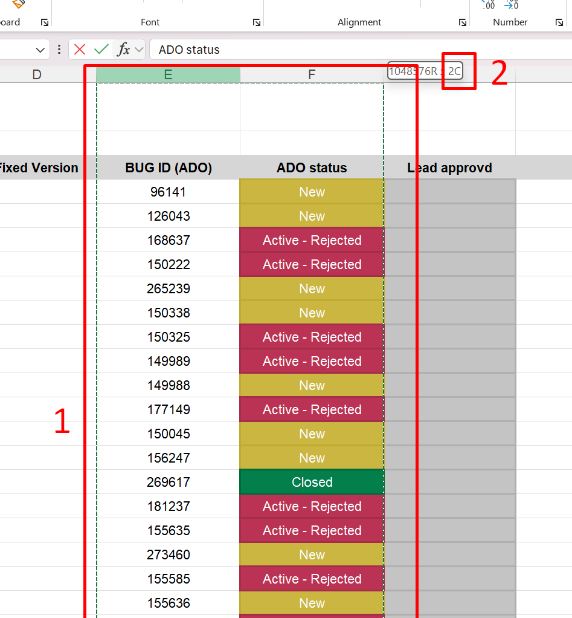
In the second box mark the range of columns that you want to have from the Monday.com file, starting from the “BUG ID (ADO)” column moving to the right side (step 1 in the picture)
-
In the third box you’ll need to put the number of the column that you want to get the data from, in this case it would be 2 and in the forth box put 0.
-
-
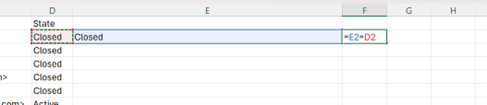
In the next column write =(the cell with the vlookup function)=(the cell in the “State” column)
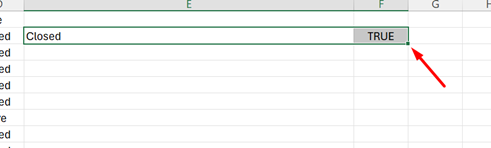
Mark both cells and double click on the write bottom corner
 This will auto fill the formulas to the end of the table.
 -
The changes we’re looking for are marked as “False”:
-
cells with #N/A, these cells means that the bug is new.
-
cells that changed from any state on Monday.com to “closed” on ADO.
-
cells that changed from “resolved” on Monday.com to “active” or “new” on ADO.
-
-
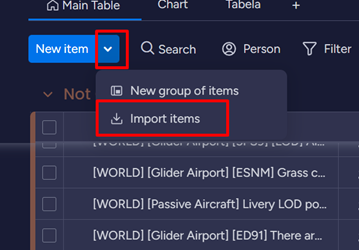
All the new bugs should be saved in another file and uploaded to Monday.com, to upload the file click on the arrow next to the “new item” button and on the “import items”.
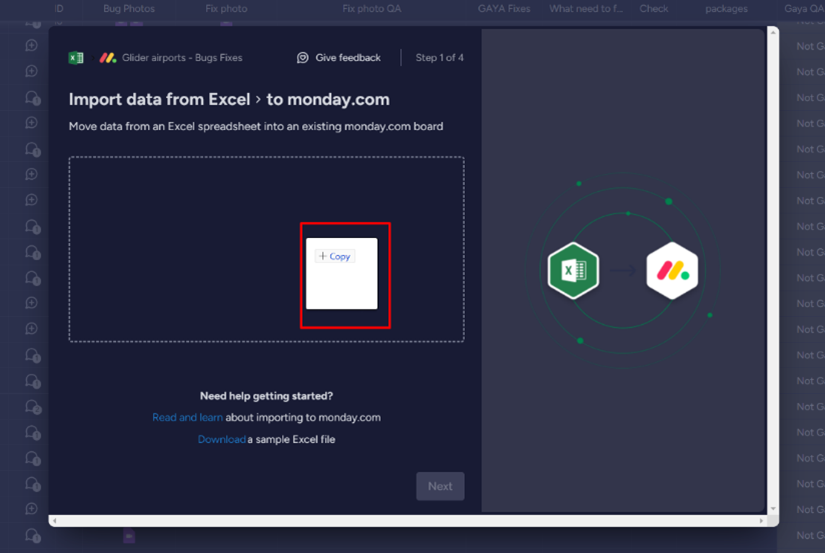
 Then,drag the file to the box in the new window
And click “next”
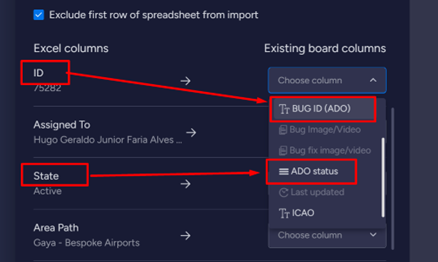
Choose from the menu “title” or “name”, and click “next”For “ID” choose “BUG ID (ADO)”
For “state” choose “ADO state” or “ADO status” and click “next”
click on the Create new items and then click on the “start import” button
this will import the file to a new group in the board, before transferring the new bugs to the “incoming bugs” group, you’ll need to copy the images from ADO to the “Bug image/video” column in Monday.com.
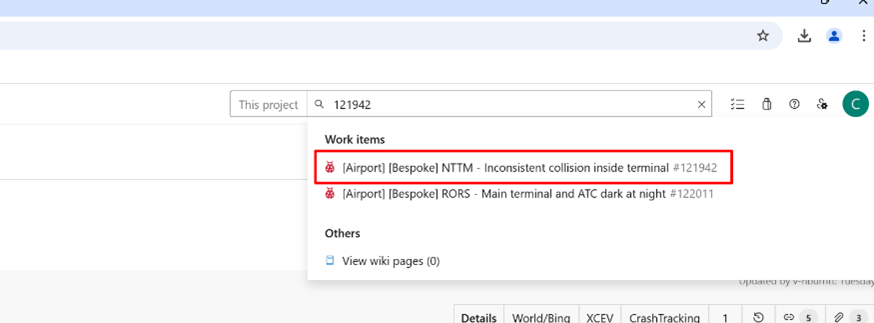
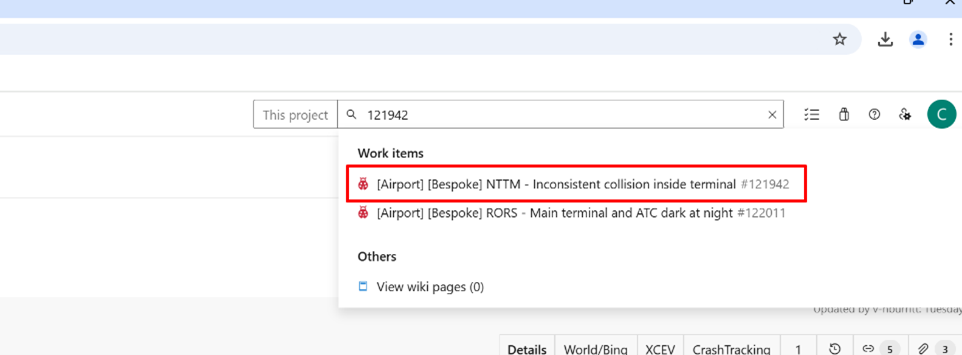
copy the bug ID from Monday.com to the search box in the ADO website and click on the correct bug line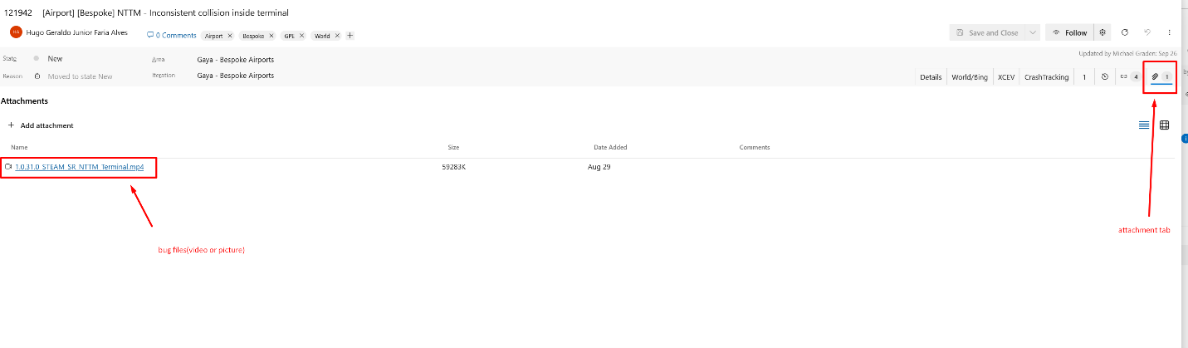
Go to the attachment tab and click on the bug files
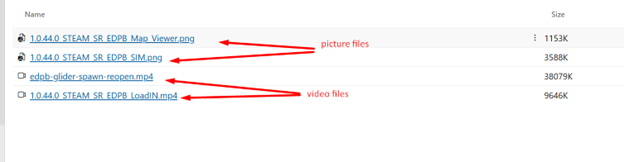
After clicking on a picture file a new window will open with the image, by right-click on the image a menu will appear with the option to copy the
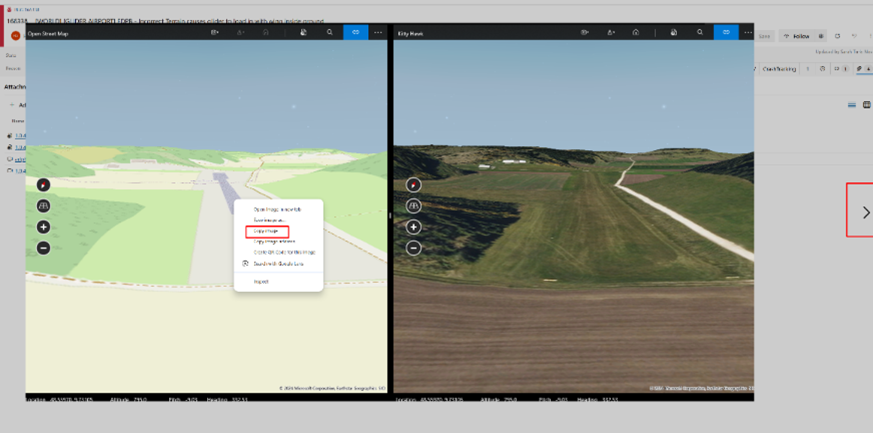
After copying the image go to the “bug image” column in Monday.com click on the correct cell and then Crtl+V to paste the image to the cell.
If there are more bug files you can click on the arrow on the right or left side of the image.
In case the file is a video, you’ll need to copy the file to your computer by right-click
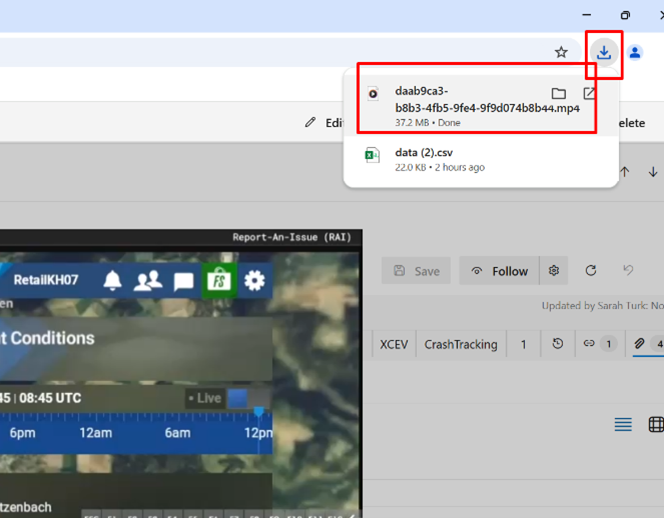
on the video and then “save video as”. It doesn’t matter where you save the file.
when the video finish downloading a window will open with the file name,drag the file to the correct cell in the “Bug Image/Video” column on Monday.com.
Some bugs have 1 picture or 1 video, others have both and in some cases there are more, you need to transfer all the images files in ADO to Monday.com
-
Bugs that were closed in the ADO can be updated in Monday.com by saving them on a new file and uploading the to Monday.com
Choose the “overwrite existing items” window and from the menu choose “BUG ID (ADO)” and click “start import”In every line that the BUG ID (ADO) will be the same as the one in your file the ADO status will change to “closed”
-
Bugs that changed from “resolved” to “active” or “new” need to be updated manually as they need new images to be uploaded and need to move to the “incoming bugs” group
-
Any bug that was updated as “active” or “new” in the Monday.com board, you’ll need to update the Product Manager about it
Updating the ADO status
After the bugs were fixed the Product Manager should inform that a
package is ready to be checked by the QA team.
The QA team should check that the bugs have been fixed and upload images
of the fixed bug (in case there’s a video of the bug there should be a
video for the fixed bug) to the ”Fix photo QA” column on Monday.com and
change the status of the “Gaya QA check” column to “fixed”.
Before updating the ADO that the bug is fixed, the bug video/pictures will need to be looked at by the QA manager or in some cases a team leader (lead).
If it’s not possible to see if the bug was fixed in the video or picture, it would be necessary to double check in-game and attach a better images.
After verifying that the bug was fixed it would be possible to update on ADO the state of the bug.
 Copy the bug ID from Monday.com to the search box in the ADO website and
click on the correct bug line.
Copy the bug ID from Monday.com to the search box in the ADO website and
click on the correct bug line.
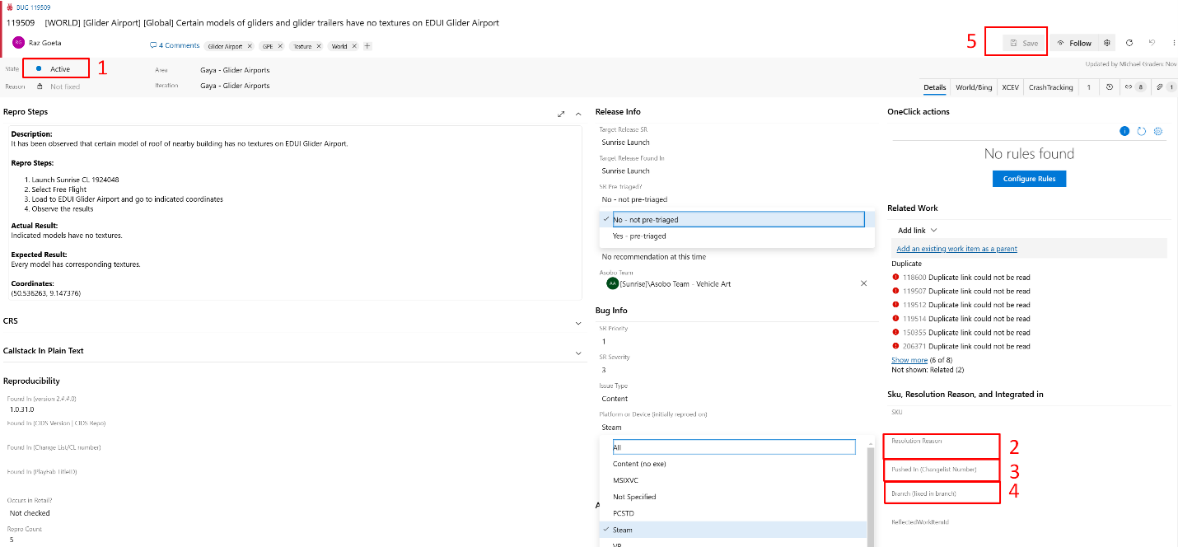
Step 1: go to “state” and change it to “resolved”
Step 2: go to “Resolution Reason” and choose from the following:
-
Fixed: for bugs the were fixed.
-
By design: for bugs that aren’t bugs but only look like bugs(example: a helipad without any markings on it, that in real life have no markings as well)
-
Won’t fix: for bugs that the Product Manager decided not to fix
Step 3: go to “Pushed in” and enter the version number – this step is only necessary for a “fixed” bug
Step 4: go to “branch” and choose “_N/A”
Step 5: after you filled all the necessary fields, the “save” button will become accessible and by clicking on it all the changes you’ve made will be saved.
after saving the changes on the ADO website, update the same bug on Monday.com, by changing the status in the “ADO status” column to “resolved”.
When all the fixed bugs have beed updated on ADO and Monday.com they can be moved to a new group on Monday.com and added to the changelog.
Changelog
To create a changelog follow these steps:
-
Export the group of bugs you want to add to the changelog
-
Delete from the excel file the bugs that weren’t fixed (no repro + won’t fix)
-
Delete the first 2 lines in the excel file and the Monday.com logo
-
Find and open the correct changelog board and import the file to the board
-
Fill the “issue type” column as “bug fix” and the date
-
Export the whole board to excel and delete the Monday.com logo