Global team workflow improvements
Introduction
This document outlines the proposed workflow improvements for our global team working across MSFS2020 and MSFS2024 platforms. As our team expands and our projects become more complex, we need to establish more efficient processes, standardized methods, and centralized resources to enhance both productivity and quality. The following guidelines aim to address current workflow challenges, promote consistency in our artistic output, and facilitate smoother collaboration between team members and managers.
Purposes
In general, the purpose of this paper is to show the changes we need to implement in the global team in order to make the work more efficient when working on both MSFS2020 and MSFS2024. In addition, we want to make our products with higher quality.
Key objectives of this workflow redesign include:
- Establishing a centralized approach to material and asset creation
- Reducing redundant work through better resource sharing
- Creating clear communication channels for resource requests
- Enhancing visual quality and immersion through standardized animations
- Streamlining the conversion process between MSFS2024 and MSFS2020
- Ensuring consistent artistic quality across all products
- Implementing a structured task management system to ensure quality control
- Creating a standardized workflow that balances artistic freedom with technical requirements
- Establishing clear checkpoints for feedback and approval throughout the development process
Changes Components
Tasks Management
As we are reaching for more complex and high-quality products, we need to adjust the management process so we can meet the standards that we determine in both visual and technical quality. The pipeline:
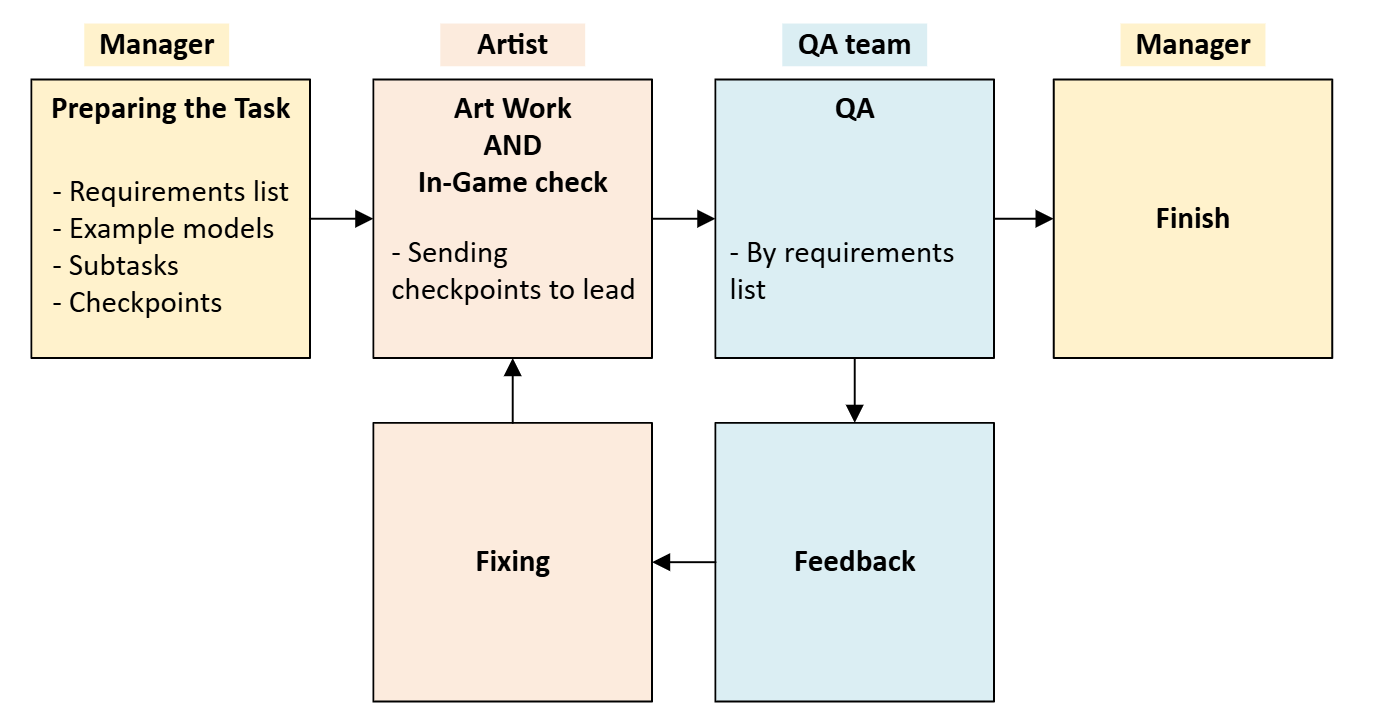
- Preparing the Task - The task should have a clear requirements list and example models. Managers should break the task into small subtasks and determine checkpoints for feedback by the lead artist.
- Artist Check In-Game - In this step, the artist should check the model in-game and correct any problems. When they believe the model is ready, the artist will pass it for QA.
- QA Test - In this step, the project QA should check the model and verify if it meets all requirements.
- Feedback - Will be given by the QA until all requirements are approved.
- Fixing - The artist addresses all feedback points.
- Finish - Task completion and final approval.
Example protocoles
Requirements list:
Modeling
- Modeling and LODs should be made for msfs standards.
- Assets should be taken from shared blender file. If a new assets is needed and it is missing from the file, request it by filling this form:
- Lights should be created, need to use emissive material for light model and add light object with day/night cycle
-
windows should have "fake interior" material withe emissive for night scene.
Note
For terminal and control tower buildings, the interior should be modeled as well. In those cases the windows should be transparent glass and collision should be made accordingly.
References
- Should be most resent and up to date
Materials
- Textures should be taken from the shard package
Shared drives\GAYAShared\microsoft-modellib-texture\PackageSources\Microsoft_TextureLib - The material should be like in real life! if the "true" material is missing from the shared package, we will create it. by filling this form:
- T/D should be at lest ____
Animations
- Is there something we can animate for better immersion of the scene?
Scope
- Do we need curbs?
- Do we ignoring slight ramp of the landscape or we need to make same slide of basement for the building
- Do we need interior?
- if yes on what parts of terminal, only tower or terminal itself, maybe opened fire station etc (Exact requirements for there interior need)
- How detailed, if its terminal for we need to place default assets and materials to have illusion of filled volume or we making one o one interior with signature props and materials
- how important building in general, if its first line object we can create fake rooms, if its far objects with less priority - blank windows
- most important things like what is the exact area of building
- need unique props (if yes - create list or at least ask artist to create list and then manager will approve it)
Example model
- EVJA_3
Subtasks steps
- Collecting references. (CheckPoint)
- Modeling building.
- UV mapping and texturing.
- Adding details, assets, and lights.
- Test in-game
- LODs
- Colliders
- Test in-game and deliver. (CheckPoint)
requirements list:
- Reduce memory footprint: Minimizing the size of ship packages to improve loading times and reduce overall memory usage.
- Enhance runtime performance: Optimizing models and LODs to improve frame rates and reduce rendering overhead.
- Simplify asset management: Streamlining the Blender file structure and asset organization for easier iteration and maintenance.
- Improve asset reusability: Enabling the creation of multiple ship variations with minimal additional assets.
- LOD:
- Collisions
- Environment occlude
- Lights
example model:
- Microsoft_Ships_LucyBorchard
subtasks:
- Split the ship part. (CheckPoint)
- Organize blender file
- Export ship parts and create an XLSX file with all variants
- Create a package and test in-game
-
Optimize LODs (CheckPoint)
Steps 1-4 should take 1-1.5 days
Step 5 should take between 2-4 days, depending on its complexity.
Materials
Material Artist
For getting the best result and uniformity in the creation of material, we need to centralize it. The material artist will be responsible for creating, managing, and maintaining all standard materials used across projects. This includes:
- Developing a comprehensive material library with standardized PBR materials
- Creating specialized materials as needed for specific projects upon request
- Ensuring all materials perform optimally across both MSFS2020 and MSFS2024
- Documenting material properties and usage guidelines
- Training other artists on proper material application
- Regular audits of material usage to identify optimization opportunities
Shared Package
The shared material package will serve as our centralized repository for all approved materials. Key components include:
- Standardized naming conventions for easy identification
- Documentation on material properties and optimal use cases
- Regular updates with new materials and improvements to existing ones
- Platform-specific variants when necessary for MSFS2020 vs MSFS2024
Split LOD Textures (TBD)
In MSFS 2020 we reduce the textures for LODs 2 and 3 so for each texture we add 3 versions in 3 sizes. To make the system more efficient we are going to use the same method in MSFS2024. We will gain 2 things out of it:
- Have better performance and reduce drawcalls in MSFS2024
- Have better flow when converting the MSFS2024 models to MSFS2020
Assets
Assets Artist
The same as for the materials, the assets artist will be responsible to create and manage assets that can be used for different projects. Specifically, the asset artist will:
- Create high-quality, reusable 3D assets following established style guidelines
- Optimize assets for performance across both platforms
- Ensure proper UV mapping and material assignment
- Document asset specifications and usage parameters
- Respond to new asset requests from the team
- Maintain and update existing assets when necessary
- Collaborate with the material artist to ensure optimal material application
- Develop asset variants when needed (different detail levels, configurations)
Shared Blender File
All the assets that will be created by the asset artist will be saved in a shared Blender file that will be available for all the artists in the team. The artists then will be able to take, use, and modify those assets in their models. This system will:
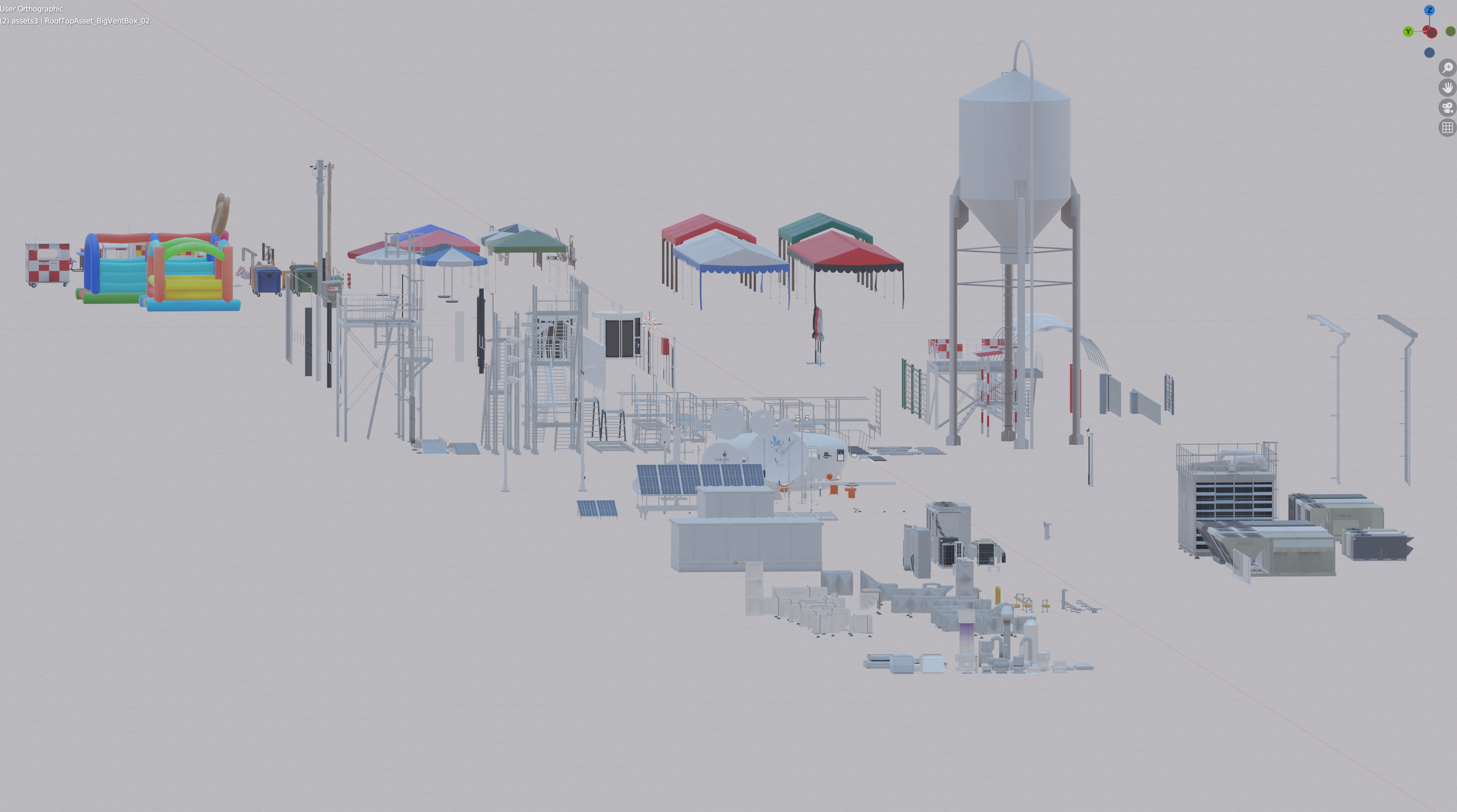
- Provide immediate access to approved assets
- Ensure consistent scale and proportion across projects
- Support instancing for efficient file sizes
- Enable customization while maintaining core asset integrity
New Assets Request
When an artist starts working on a new model, they always start by collecting references. At this step, they should check if there are assets that they need that are not available in the shared Blender file. In this case, the artist will request the new assets from the asset artist using a dedicated Monday board. The request process will include:
- Detailed description of the needed asset
- Reference images and measurements when available
- Priority level and deadline requirements
- Project context to understand usage requirements
- Specification of any special material needs
- Notes on variants or configurations needed
- Platform-specific considerations (2020 vs 2024)
Animations
In addition to making more immersive models and environments in the game, we need to add more animations for the models we are creating like flags, doors, AC, and more. Our animation workflow will include:
- A standardized animation library for common objects
- Documentation for animation implementation
- Performance guidelines to ensure smooth playback
- Scale-appropriate movement speeds and ranges
- Event-triggered animation options
- Day/night cycle responsive animations
- Weather-responsive animations where appropriate
- User-interactive animation elements
MSFS2024 to 2020 Converter
- Modifying the GLTF texture structures so FS20 correctly recognizes all maps (Roughness, etc.).
- Precisely detects where changes are needed and adjusts the texture indexes accordingly.
- Adding a function that enables the day/night cycle in the script to ensure that lights only turn on at night.
- Creating an automatic backup of the original GLTF files in the root folder.
- Checking the integrity of the GLTF files by comparing the modified version with the original to prevent errors.
- LOD Processing: Read the GLTF and find all textures used in LOD 02 and 03 >> find the texture files in the folder and create new LOD2 (256x256) and LOD3 (64x64) versions >> apply them to the GLTF.
- Light and emissive adjustments: adjust all lights and emissive in a simple and controlled way.
- Added the Draw Order Fix for Decals, automatically inserting drawOrderOffset into decals when necessary
Note
multimaterial- in this stage multimaterial works good from blender to msfs2024 but not on msfs2020. That mean that if we are using multimaterial for asset in 2024 we will need to create a new version without multimaterial for msfs2020. We still working on finding a solution for this gap.
To-Do List
- Create t MSFS2020 to 2024 Converter tool.
- Create a dedicated Monday board for artists to efficiently request new assets or textures from the specialized artists.
- Split existing high-resolution textures into LOD2 and LOD3 versions within the
modellib-texturespackage to prepare for wider implementation. - Create a standardized animations file format and workflow for easy implementation of model animations within the simulator.