Airports Upgrade Packages
Packages:
This link has all 163 airports in a shared project, including the shared textures and model library. These packages are already converted to MSFS2024 and are in the new structure.
Link to Download: ask the manager for access to the shared drive
Important: Old files and 3d sources in max or any other software are located in HELIX, also in the MSFS2020 depots. The depots started with "msfs2024_" not contains the work files, also they are not inside this zip file. Important also mention the MSFS2024 packages are not updated in HELIX, we will do it in end of project since everyone don't have access to helix yet.
ModelLib Strcture for Old and New Models:
Inside each airport, you will find two model libraries: the new and the legacy.
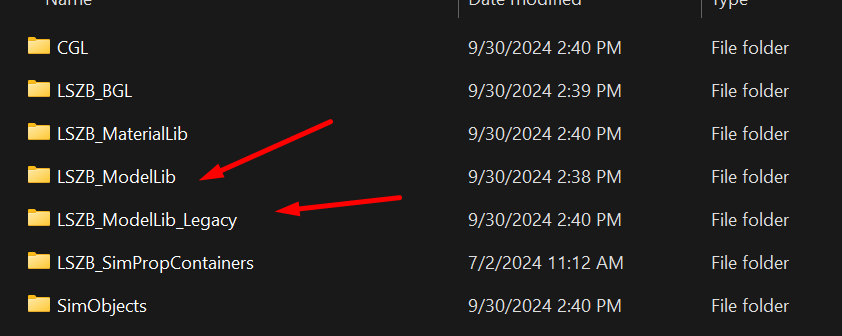
All old models of WU airports, Asobo, or other developers---any model related to MSFS2020---are inside the Legacy model library. The new models made for airport upgrades are in the normal ModelLib. All airports should have the same structure, except for a few things that can be particular to each airport, like CGL or SimObjects.
Simplygon:
Many of the old models use Simplygon to generate automatic LODs. For you to successfully build the project, you should install Simplygon. Please have a look at the documentation about it:
Documentation/html/3_Models_And_Textures/Modeling/Landscape/Using_Simplygon_To_Generate_LODs.htm
Also, make sure you receive the Simplygon key from management to download and install the SDK. Talk with Raz
How to Prepare and Build Package:
If you look at the root folder, you have all packages and the project\'s XML files.
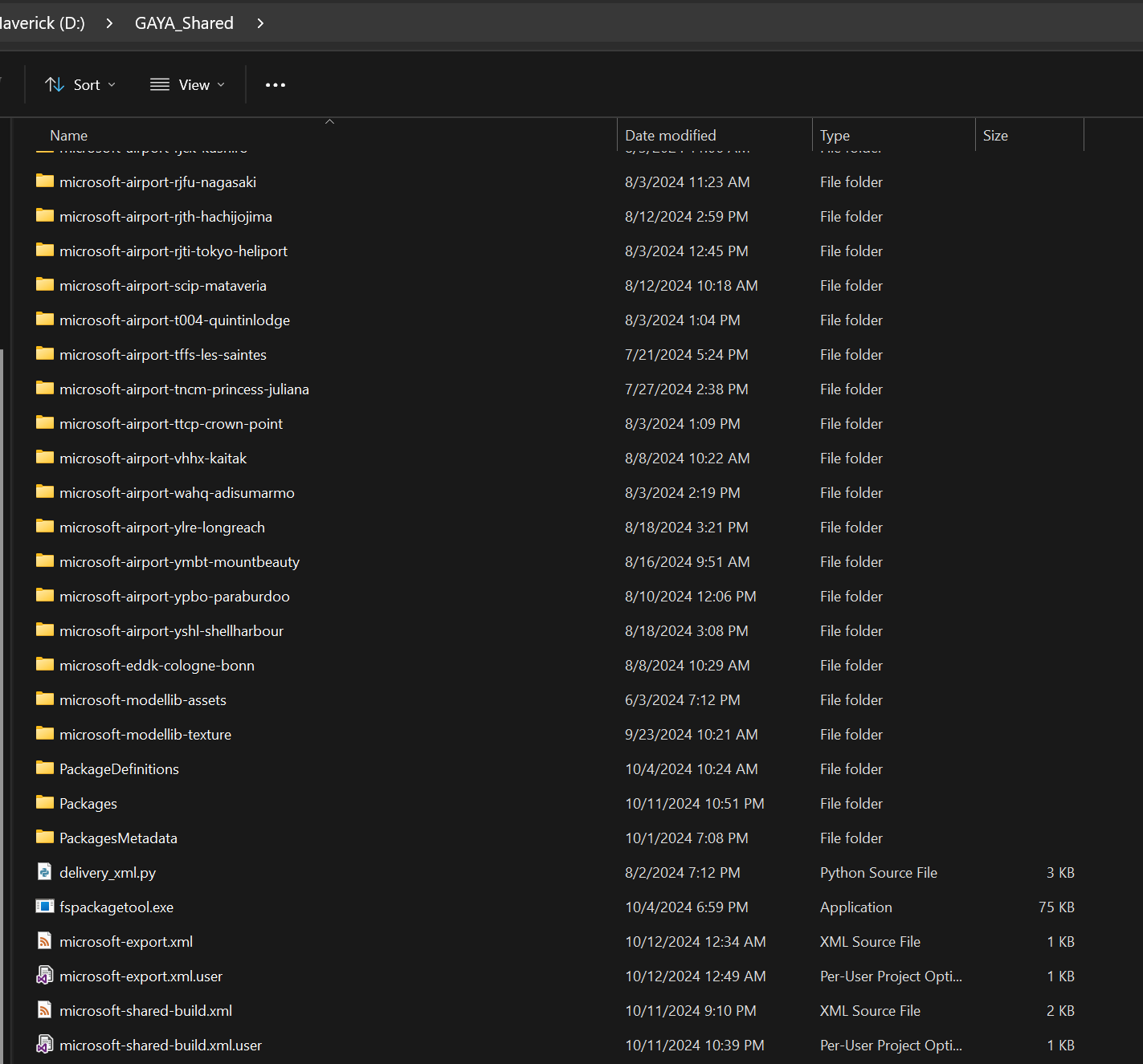
Your main project file is: microsoft-shared-build.xml If you edit it, you will note we have two categories of packages: the Airports and the Shared.
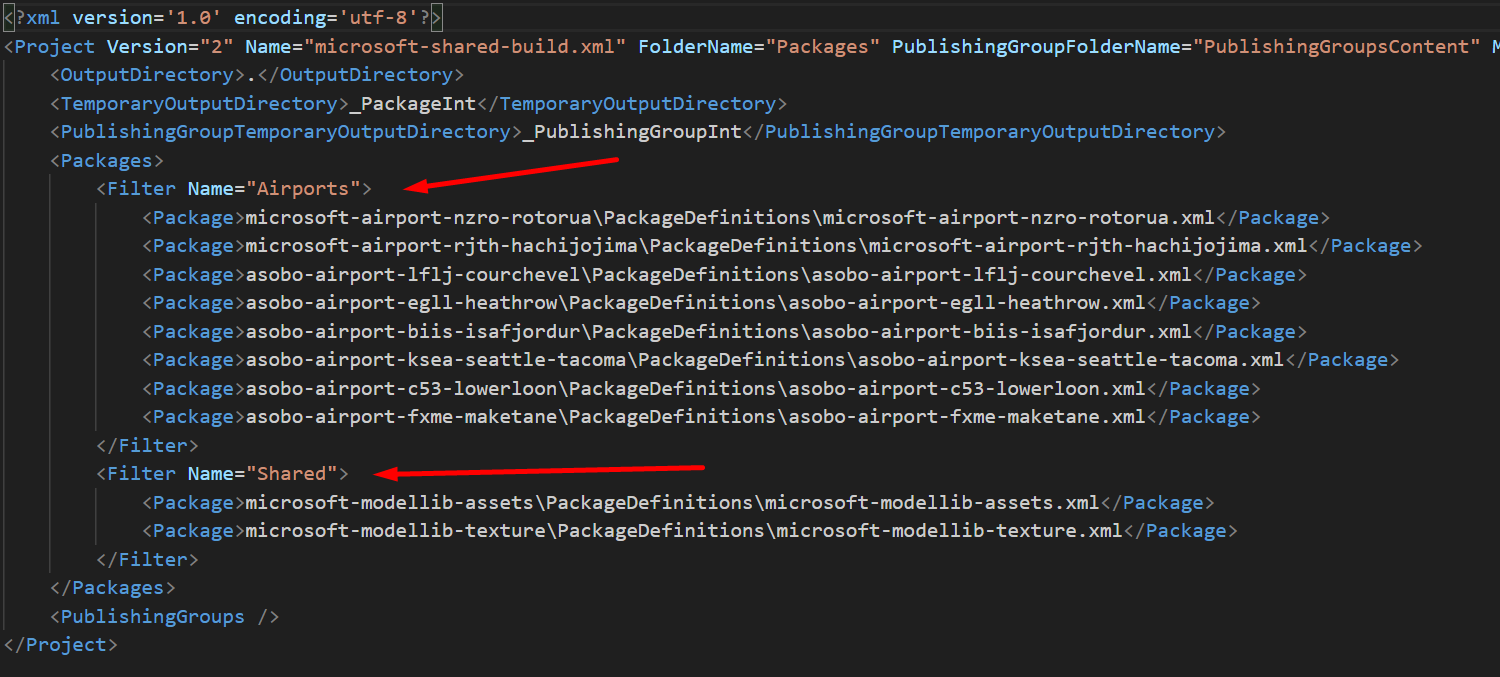
Shared is required to have all the time, and for the Airports, I recommend you keep only the batch of airports you are working on, since building all 163 will take more than 5 hours just to build. In the sample, I have only a few airports that I'm working on now. You can edit it any time.
Important: At the moment you edit the xml manually, you need to delete the microsoft-shared-build.xml.user to build again without error.
I recommend building the package externally; just drag and drop the XML into the fspackage.exe. Also, I recommend after the build is done, you have the packages you are working on in the community folder. For that, I recommend you create the folder with a symbolic link.
Open the Project in Editor:
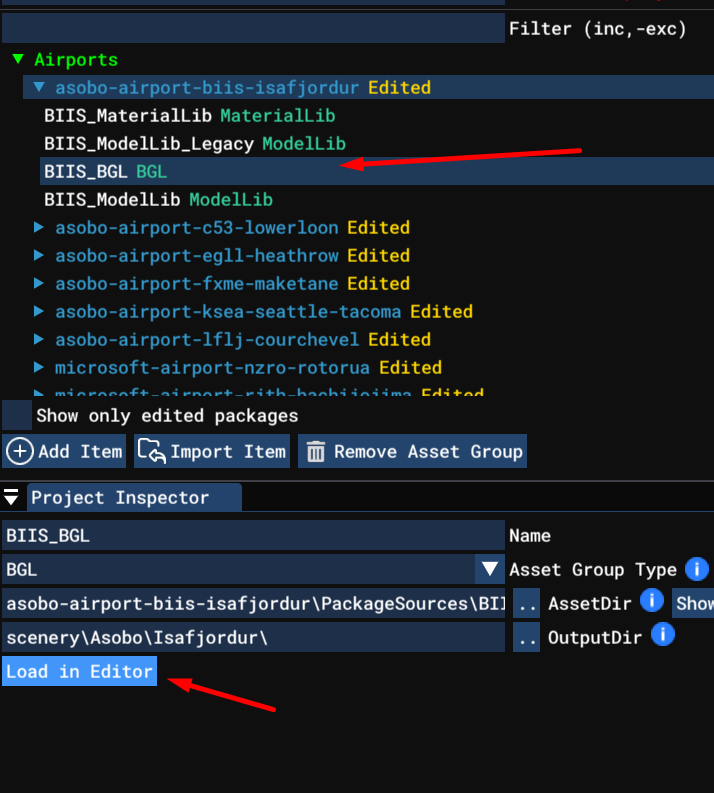
To open the package, select the main XML of the package structure:
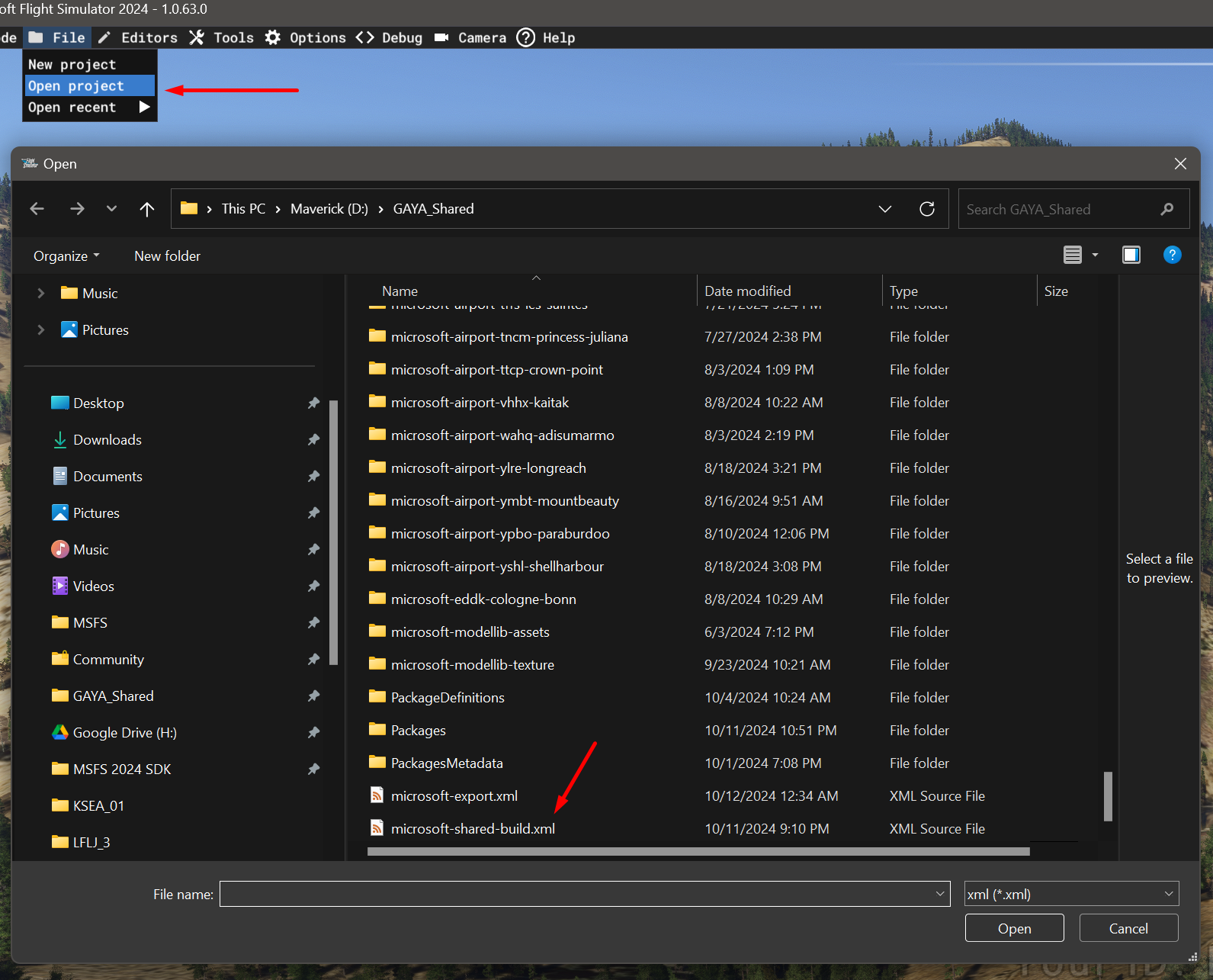
Then you can select the airport you want to work on and open it in the editor:
Streamed Package:
MSFS2024 is now using streamed packages most of the time, which include airports, vehicles, ships, oil rigs, and shared libraries. Until the development is complete, if you do not load the package in the editor and mark it with the tag "Edited," the game will load the content from the streamed package.
Due to the delay between the deploy from Gaya and the ingestion process of Asobo, many times the packages outside of the editor are outdated. For example, if you have vehicles in the airport and they are not showing in-game, it\'s probably because the streamed package is not updated with our latest deploy. To show all content, you need to open it in the editor and add the tag.
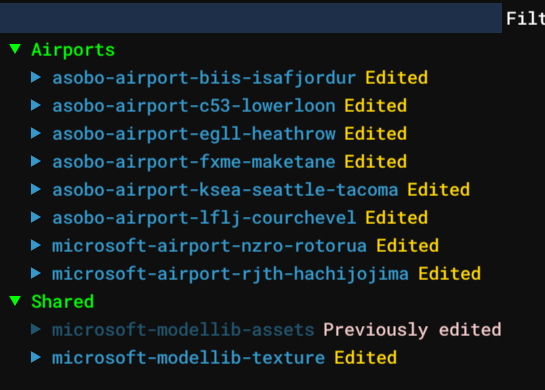
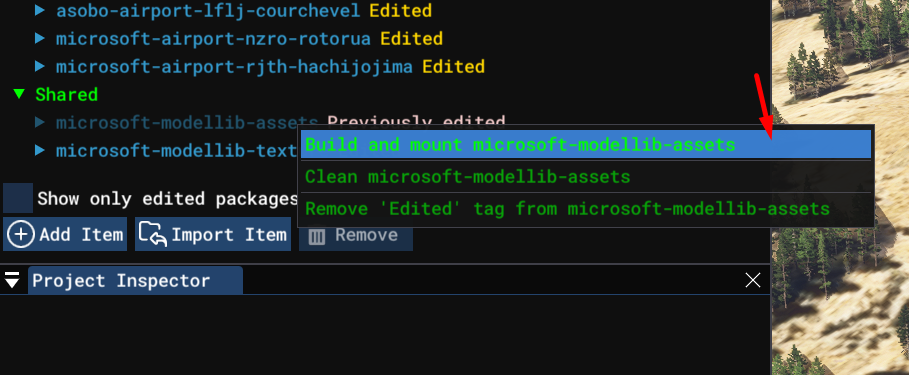
To add the tag, you can just right-click on the package and select "Build and Mount"; after that, the package will show with the "Edited" tag.
 {width="4.735637576552931in"
height="1.9534503499562554in"}
{width="4.735637576552931in"
height="1.9534503499562554in"}
It is strongly recommended to have \"Edited\" for both the shared package and the airports, as that will prevent many issues during the tests.
You can read more about package state in SDK Documentation:
Documentation/html/2_DevMode/Project_Editor/The_Project_Editor.htm
Exporting Package for Microsoft Delivery:
Microsoft requires marketplace versions of content to be ingested into their system. That means you need to open the package and click "Build & Export":
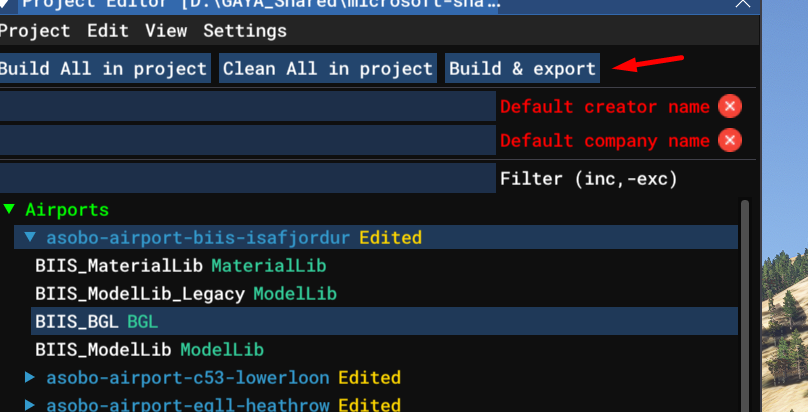
That will open an export dialog, where you should select the package you want to export, the marketplace option, and then the folder where the zip will be exported.
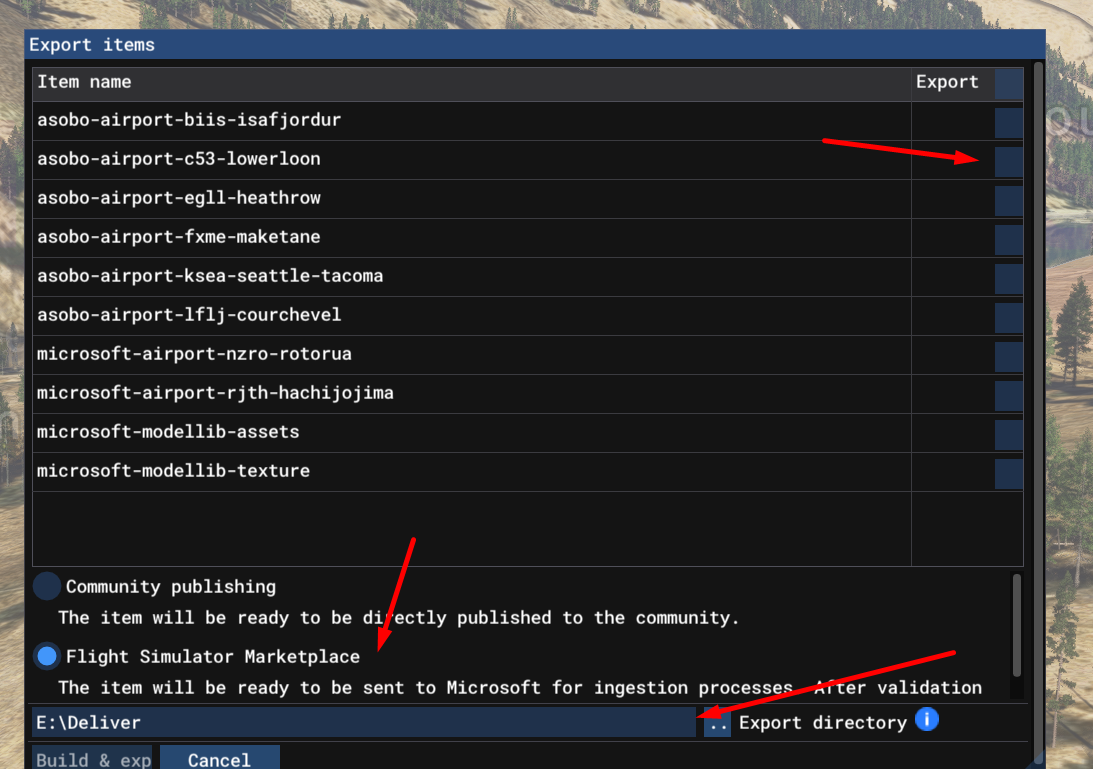
Then just click Build & Export and wait.
Important Issue: There is a current issue in Dev Alpha where exporting multiple packages is crashing the game, causing CTDs or sometimes blue screens.
The workaround we are using for that is to have a project XML with a single airport, located in the main folder of the package:
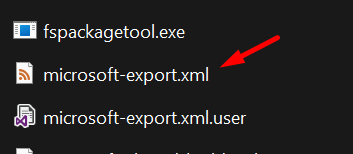
You will note inside this XML we have only one package:
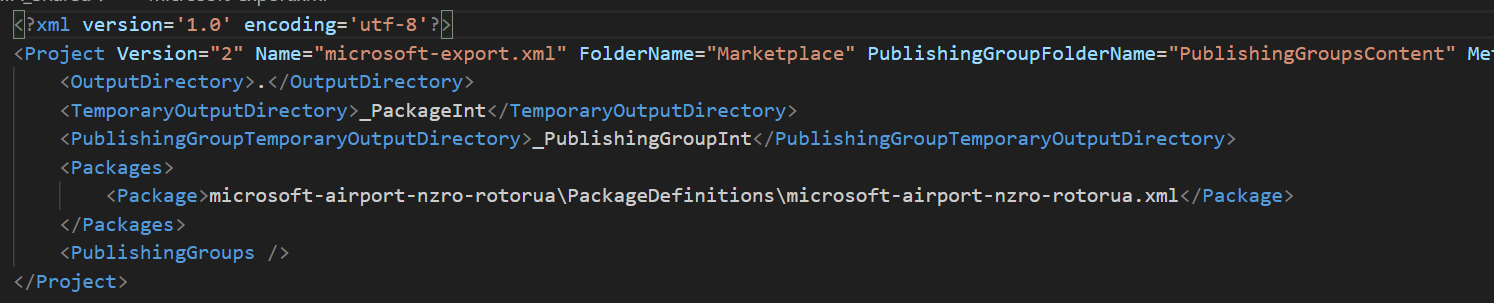
I recommend exporting to marketplace using that XML; just edit it with the package you want to export and load in-game, then repeat the process to build & export. That will create a successful export of the package.
Zip Naming:
Remember to add the version number in the zip naming for delivery. For example, change:
microsoft-airport-ypbo-paraburdoo.zip
to
microsoft-airport-ypbo-paraburdoo_v2_0_2.zip
Always use underscores and not dots to separate the numbers.